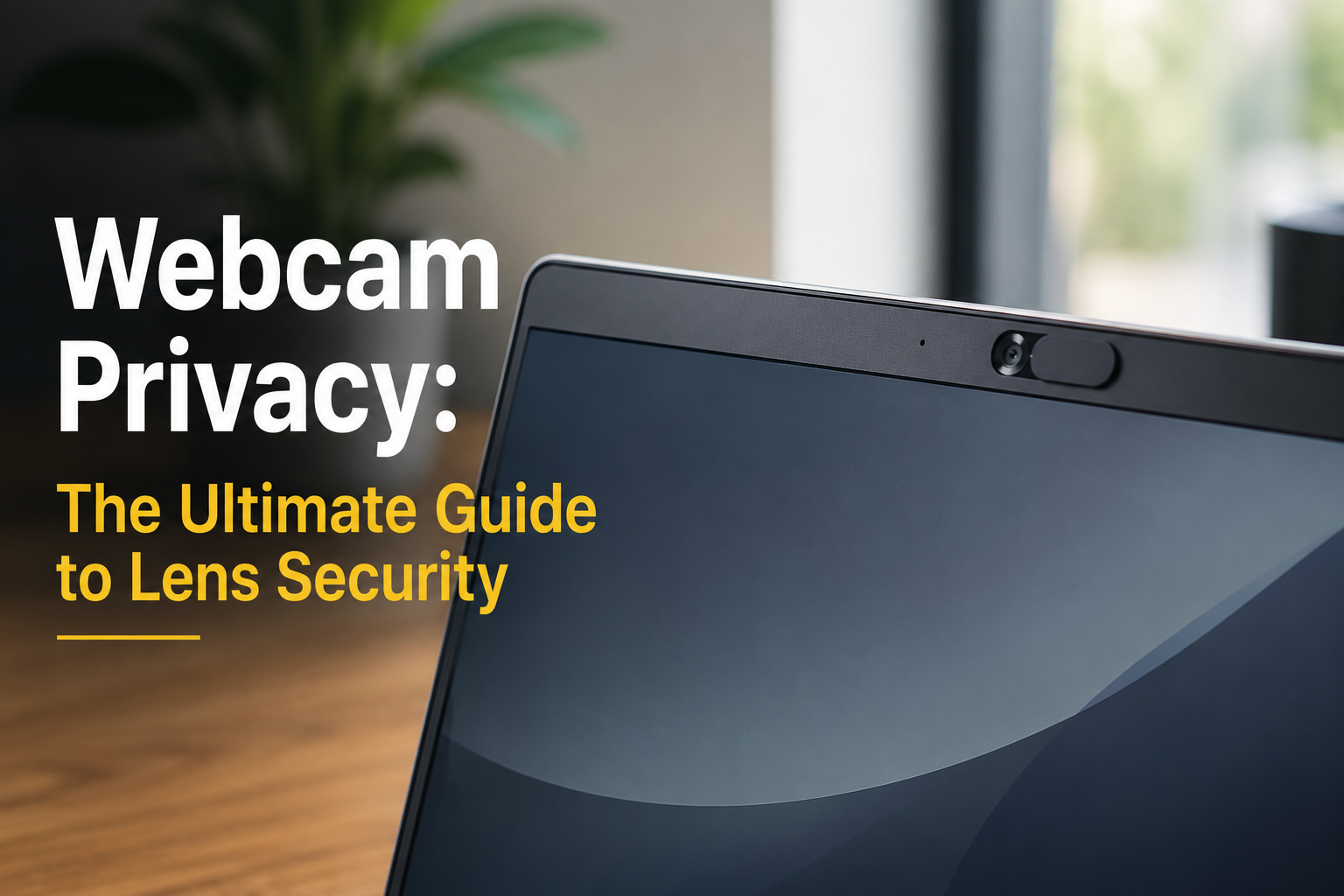
Covering your webcam is a simple yet profoundly effective step to safeguard your digital privacy and enhance your security against potential cyber threats. The most direct answer to “how to cover webcam” involves using a physical barrier – whether a dedicated sliding cover, opaque tape, or a sticky note – that completely blocks the camera lens when not in use.
In an era where our lives are increasingly digital, the small, unassuming lens on our devices represents a potential vulnerability. It’s not just about what you’re doing online, but what unseen eyes might be able to observe from your physical space. Understanding the practical methods and underlying reasons for webcam protection is no longer optional; it’s a fundamental aspect of modern digital hygiene that every internet user should embrace.
Understanding the Real Threat: Why You Need to Cover Your Webcam
Many users dismiss the idea of covering their webcam as an overreaction, believing they have nothing to hide. However, the threat is less about what you might be doing at any given moment and more about the unauthorized access and potential misuse of your personal space by malicious actors. Remote access Trojans (RATs) and other malware can grant hackers complete control over your device, including activating your webcam without any visual indication.
Cybersecurity experts have long advocated for physical webcam covers. Even the former FBI Director, James Comey, publicly stated he covers his webcam. This simple act provides a crucial physical layer of defense that no software alone can guarantee. It ensures that even if sophisticated malware bypasses your antivirus and operating system defenses, your camera remains physically obstructed.
The Silent Invasion: How Webcams Can Be Compromised
Webcam hacking, often referred to as “camfecting,” is a technique used by cybercriminals to secretly record users through their webcams. This is typically achieved through malware, such as remote access Trojans (RATs), which are often embedded in seemingly legitimate software downloads, phishing emails, or malicious websites. Once installed, the RAT allows an attacker to control the webcam remotely without triggering any indicator lights or notifications on your device.
The consequences of camfecting can range from simple privacy invasion to far more sinister outcomes like extortion. Attackers may record compromising footage, capture sensitive documents in your background, or even observe your daily routines to aid in other forms of attack, such as home invasion planning or identity theft. A 2023 study by Surfshark indicated that the US consistently ranks among the top countries for data breaches, highlighting the pervasive risk of cyber threats impacting personal information and device security.
The ease with which these attacks can occur makes a physical webcam cover an indispensable tool. “A physical barrier is the ultimate failsafe,” states cybersecurity expert Dr. Kelli B. Dunlap. “Software can be exploited, but a piece of tape or a slider over the lens offers a tangible block against visual surveillance.”
Common Risks Associated with an Uncovered Webcam
Leaving your webcam uncovered exposes you to several significant risks:
- Privacy Invasion: Unauthorized individuals can watch you, your family, and your surroundings without your knowledge or consent. This is a direct violation of your personal space.
- Blackmail and Extortion: Attackers might record compromising moments and use the footage to blackmail you for money, sensitive information, or further malicious acts.
- Identity Theft: Information visible in your background, such as documents, credit cards, or mail, could be captured and used for identity theft.
- Physical Security Risk: Observing your home layout, when you are home, or if you have valuable items visible, can aid criminals in planning burglaries.
- Workplace Espionage: If you work from home, corporate secrets or sensitive client information could inadvertently be revealed if visible in your webcam’s view.
Effective Methods for Covering Your Webcam
There are numerous ways to cover your webcam, ranging from simple DIY solutions to purpose-built accessories. The best method for you will depend on your device, aesthetic preferences, and desired level of convenience.
Simple and Cost-Effective DIY Solutions
For immediate and budget-friendly protection, several common household items can serve as effective webcam covers. These methods are straightforward to implement and provide instant peace of mind.
Using Tape
Tape is perhaps the most ubiquitous and accessible DIY solution. It provides a reliable opaque barrier over the lens.
- Electrical Tape: This is a popular choice due to its opacity and good adhesion. It’s generally non-damaging to surfaces and easy to remove without leaving much residue.
- Painter’s Tape: While not as opaque as electrical tape, painter’s tape is designed for easy removal, leaving virtually no residue. You might need to layer it for full opacity.
- Opaque Sticky Tape: Any opaque tape can work. Ensure it is not highly adhesive to prevent damage or residue on your device.
How to Apply Tape:
- Cut a small piece of tape, slightly larger than your webcam lens.
- Carefully align and press the tape directly over the camera lens.
- Ensure the tape completely covers the lens and the indicator light, if present, to prevent any light from indicating camera activity.
Consideration: While effective, repeated application and removal of tape can sometimes leave minor residue. Clean the area with an electronic-safe cleaner if needed.
Sticky Notes or Opaque Stickers
Small sticky notes or opaque stickers designed for crafting can also be used. They are less adhesive than most tapes, making them easy to remove.
- Small Sticky Notes: Tear a small piece from a sticky note or use a mini-sized one. Fold it or layer it if necessary to ensure full opacity.
- Opaque Dot Stickers: These are often found in stationery stores and can be a neat, minimal option if they are perfectly sized for your lens.
Consideration: These might not stick as securely as tape, especially on curved surfaces or if frequently handled, requiring more frequent reapplication.
Dedicated Webcam Covers: Convenience and Aesthetics
For a more permanent, elegant, and convenient solution, dedicated webcam covers are an excellent investment. These are designed specifically for the purpose and offer a cleaner look than DIY options.
Types of Dedicated Webcam Covers
Dedicated covers typically come in a few main designs:
- Sliding Covers: These consist of a thin plate that adheres to your device and features a small slider you can move to expose or cover the camera lens. They are highly convenient for frequent use.
- Magnetic Covers: Some covers use magnets to attach, offering easy removal and reattachment. These are often used with devices that have a magnetic frame around the camera.
- Adhesive Flap Covers: Similar to sliding covers, these have a small flap that you can lift or press down to cover the lens.
What to Look For When Choosing a Dedicated Cover
When selecting a dedicated webcam cover, consider these attributes:
- Thinness: For laptops, choose an ultra-thin cover (typically 0.027 inches or less) to ensure the laptop can close completely without damaging the screen or hinge.
- Adhesive Quality: Look for strong but residue-free adhesive that will hold securely without harming your device. 3M adhesive is often a good indicator of quality.
- Durability: The cover should be made from sturdy material (e.g., ABS plastic or metal alloy) to withstand daily use.
- Compatibility: Ensure the cover’s size and design are compatible with your specific device’s webcam and surrounding area.
- Color and Design: Many come in various colors and finishes to match your device’s aesthetic.
Here’s a comparison of common webcam cover types:
| Feature | DIY Tape/Sticker | Sliding Webcam Cover | Magnetic Webcam Cover |
|---|---|---|---|
| Cost | Very Low | Low to Moderate | Moderate |
| Convenience | Low (manual application/removal) | High (quick slide to open/close) | High (easy attach/detach) |
| Aesthetics | Varies (can look makeshift) | Clean, integrated look | Clean, integrated look |
| Device Compatibility | Universal | Broad (check dimensions) | Specific (requires magnetic surface) |
| Residue Potential | Low to Moderate (depending on tape) | Very Low | None |
| Screen Damage Risk | Very Low | Low (if ultra-thin) | Very Low |
Step-by-Step: Applying a Dedicated Webcam Cover
- Clean the Surface: Use a microfiber cloth and a mild electronics cleaner (or rubbing alcohol) to clean the area around your webcam lens. This ensures optimal adhesion.
- Position the Cover: Carefully align the webcam cover over your camera lens, ensuring the sliding or opening mechanism is positioned correctly for easy access.
- Apply Adhesive: Peel off the protective backing from the adhesive strip on the back of the webcam cover.
- Press Firmly: Gently but firmly press the cover onto your device for about 10-15 seconds to ensure good adhesion.
- Test Functionality: Once attached, test the sliding or opening mechanism to confirm it moves freely and completely covers the lens. Also, ensure your laptop screen can close fully without obstruction.
Beyond the Physical: Software Solutions and Best Practices
While a physical cover is your primary defense, integrating software solutions and adopting good cybersecurity habits creates a layered approach to protection.
Managing Camera Permissions
Both Windows and macOS offer robust privacy settings that allow you to control which applications can access your webcam. Regularly reviewing and revoking unnecessary permissions is crucial.
- Windows: Go to Settings > Privacy & security > Camera. Here, you can toggle camera access for the device and for individual apps.
- macOS: Go to System Settings > Privacy & Security > Camera. You can see which apps have requested camera access and revoke permissions.
Expert Tip: “Only grant camera access to applications you absolutely trust and use frequently for video communication,” advises cybersecurity consultant Rachel Tobac. “If an app doesn’t need your camera to function, turn off its access.”
Antivirus and Anti-Malware Software
A reputable antivirus suite with real-time protection can help prevent malware, including RATs, from infecting your system in the first place. These programs often include features that detect and block suspicious camera activity. Keep your security software updated to ensure it can combat the latest threats.
Operating System and Software Updates
Keeping your operating system, web browser, and all applications updated is fundamental to cybersecurity. Software updates often include critical security patches that fix vulnerabilities hackers might exploit to gain webcam access. Enable automatic updates whenever possible.
Strong Passwords and Two-Factor Authentication (2FA)
While not directly related to the webcam itself, strong, unique passwords and 2FA for all your online accounts, especially email and cloud services, are vital. If an attacker gains access to your accounts, they might use that access to deploy malware on your devices.
Specific Considerations for Different Devices
The approach to covering a webcam might slightly differ depending on the device you are protecting.
Laptops
Laptops are the most common devices with integrated webcams. The key consideration here is the thinness of the cover to prevent screen damage when the laptop is closed. As previously mentioned, opt for ultra-thin sliding covers.
External Webcams
Many desktop users rely on external webcams. These are often easier to cover, as there’s less concern about screen clearance. A simple piece of electrical tape or a slightly thicker dedicated cover will work perfectly. Some external webcams even come with their own integrated privacy shutters.
Smartphones and Tablets
While less common, front-facing cameras on smartphones and tablets can also be exploited. For these devices, a small, thin sticker or a dedicated mini-sliding cover designed for mobile devices is appropriate. Be mindful not to obstruct any sensors near the camera.
Smart TVs and Other IoT Devices
Many modern smart TVs, smart displays, and other Internet of Things (IoT) devices now include cameras for video calls or motion sensing. Check your device’s settings to understand camera permissions and look for physical covers if available. For smart TVs, a piece of electrical tape is often the simplest solution, ensuring it doesn’t block infrared receivers if present.
Common Mistakes to Avoid When Covering Your Webcam
Even with the best intentions, some missteps can reduce the effectiveness of your webcam cover or damage your device.
- Using excessively thick covers on laptops: This can put pressure on the screen, potentially cracking it or damaging the hinge over time. Always prioritize ultra-thin covers for laptops.
- Blocking essential sensors: Some devices have proximity sensors, ambient light sensors, or facial recognition sensors located near the webcam. Ensure your cover doesn’t obstruct these.
- Using overly aggressive adhesives: Strong adhesives like super glue can permanently damage your device’s finish or leave stubborn residue. Stick to easily removable options.
- Ignoring indicator lights: If your webcam has an indicator light, ensure your chosen cover also blocks it. A glowing light can indicate active camera use even if the lens is covered.
- Neglecting software security: A physical cover is a crucial layer, but it doesn’t replace the need for strong passwords, updated software, and robust antivirus protection.
The combination of a physical webcam cover and diligent cybersecurity practices creates a formidable defense against unauthorized surveillance. It’s a proactive measure that empowers you to control your digital footprint and protect your personal space in an increasingly connected world.
FAQ
Is it really necessary to cover my webcam?
Yes, it is highly recommended to cover your webcam. This simple physical barrier protects against potential privacy invasions from hackers who can remotely activate your camera without your knowledge.
Can hackers see through my webcam without the indicator light turning on?
Yes, sophisticated malware, such as Remote Access Trojans (RATs), can disable the webcam indicator light, allowing attackers to record you without any visual cues that the camera is active.
Will a webcam cover damage my laptop screen?
A webcam cover can damage your laptop screen if it is too thick. It is crucial to use ultra-thin webcam covers (typically 0.027 inches or less) to ensure the laptop can close properly without putting pressure on the display.
What’s the best type of webcam cover to use?
The “best” type depends on your needs. For convenience and aesthetics, a dedicated sliding webcam cover is excellent. For a quick and inexpensive solution, a small piece of electrical tape works effectively.
Do I need to cover the camera on my smartphone or tablet too?
While less common for direct webcam hacking, the front-facing cameras on smartphones and tablets can also be exploited by malicious apps. Using a small, thin sticker or a dedicated mini-sliding cover can add an extra layer of privacy.
Conclusion
Covering your webcam is a fundamental and easily implemented practice for bolstering your digital privacy and security. Whether you choose a simple piece of tape or a sleek, dedicated sliding cover, the physical barrier provides an undeniable safeguard against unauthorized visual access to your personal space. This, combined with robust software security measures and vigilant online habits, creates a comprehensive defense that empowers you to navigate the digital world with greater peace of mind. Prioritizing this small but significant step is a clear demonstration of taking control of your personal security in a connected age.