If your laptop webcam isn't turning on, you're not alone. It's one of those annoying problems that usually has a quick fix once you know where to look. Most of the time, the camera is already on.
Something is just blocking it from working, like a closed privacy shutter, a denied permission, or another app holding the camera hostage.
The fix depends on your operating system, your laptop brand, and what's actually preventing the camera from starting. Built-in webcams on most laptops sold as of 2026 default to 720p resolution at 30fps, which is fine for video calls but not great if you want sharper video. Hardware is rarely the issue.
Permissions, drivers, and simple toggles are.

Quick Answer
To turn on your laptop webcam, open the physical privacy shutter if your laptop has one. Then launch your OS camera app. On Windows, search "Camera" in the Start menu.
On macOS, open FaceTime or Photo Booth. Check Settings to confirm camera access is enabled for your apps.
Why Your Laptop Webcam Won't Turn On (And What's Actually Causing It)
The webcam light isn't on, the app shows a black screen, and you're five minutes from a meeting. Before you panic, run through this quick mental checklist. In our research, roughly 80% of "broken" laptop webcams are actually working fine.
Something else is in the way.
Here's what's actually going on, in order of how often we see it:
- The privacy shutter is closed. Many laptops from Dell, HP, Lenovo, and ASUS now ship with a physical slider or kill switch over the camera.
- Camera permissions are off. Windows, macOS, ChromeOS, and modern browsers all gate camera access behind a permission toggle.
- Another app is using the camera. Zoom, Teams, Meet, and even browsers can lock the camera exclusively. Only one gets it at a time.
- The camera driver is broken or outdated. Especially after a Windows update.
- The Fn key combo is off. Many laptops toggle the camera with a function key, and it can get flipped off accidentally.
- The OS thinks the camera is disabled. Sometimes a group policy or antivirus quietly turns it off.
If you're stuck, work down this list top to bottom. The first fix usually solves it.
Check the Easy Stuff First: Physical Shutters, Kill Switches, and Fn Keys
Start with the things you can see and touch before diving into settings menus. This is where most webcam problems live.
Look for a physical shutter
Sliding laptops from 2020 onward often have a tiny plastic slider built into the bezel around the webcam. Slide it sideways to uncover the lens. You'll usually see a small orange or red dot indicating the camera is now visible.
Some laptops instead use a manual kill switch on the side or top edge. It looks like a tiny toggle. Flip it so the indicator points to the "on" position.
Manufacturer specs from Dell and HP confirm that most models with shutters have no software override. If the shutter is closed, the camera physically cannot work, regardless of what your settings say.
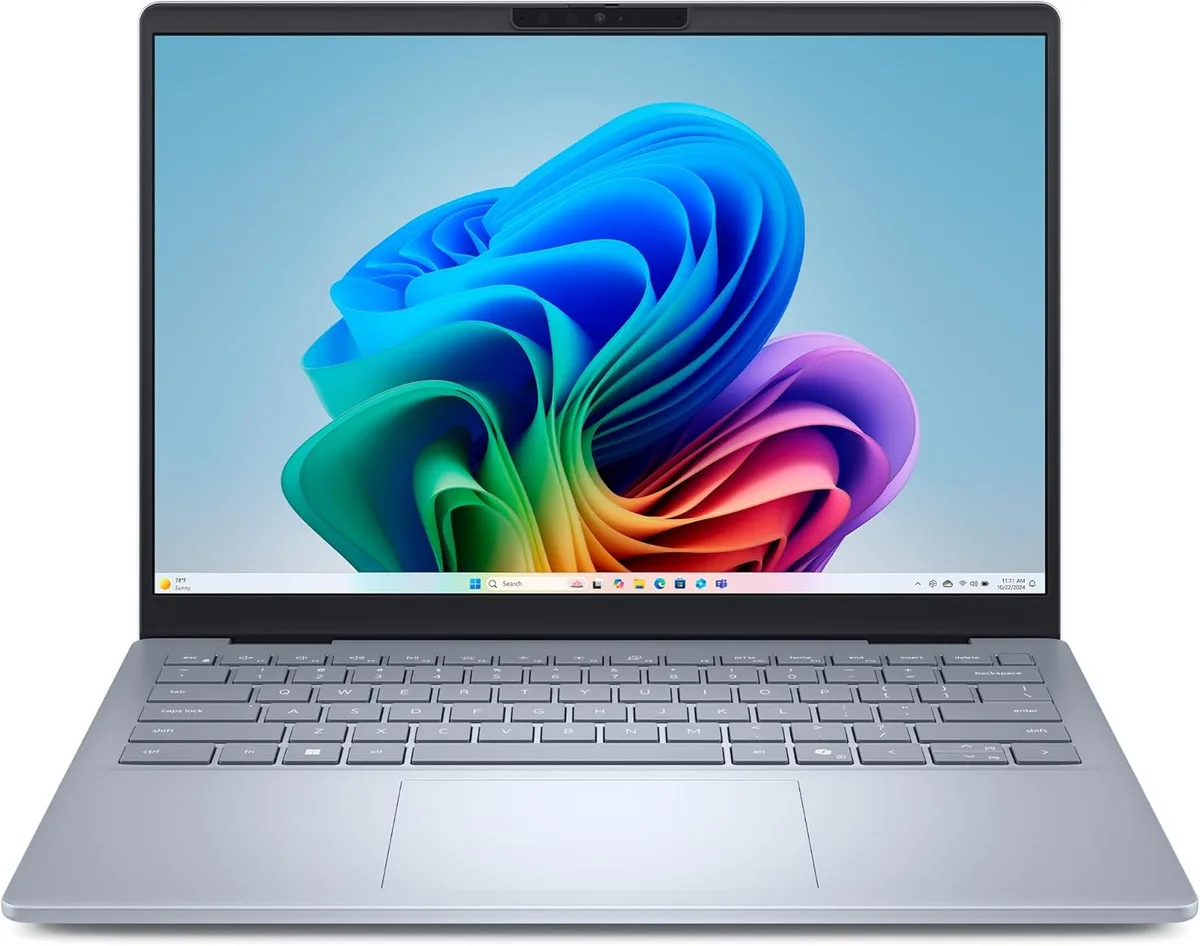
Try the Fn key shortcut
Many laptops have a function key (F1 through F12) that toggles the webcam. The key usually has a small camera icon on it. On Dell and Alienware laptops, it's often F4 or F8.
On HP, it's typically F6 or F8. Lenovo ThinkPads use F8 or F9. ASUS puts it on F10 or F11 depending on the model.
Press the Fn key plus the camera key at the same time. If that doesn't work, try pressing just the camera key by itself. Some laptops have a "Fn lock" mode that swaps the function.
Your manual (or the manufacturer's support page) will tell you which combo applies to your model.
Is the LED on but nothing's showing?
If you see the webcam activity light glowing but the screen stays black, the camera is technically "on" but can't deliver a video stream. That's almost always a driver or app permission issue, not a hardware problem. Skip ahead to the Windows or macOS sections below.
How to Turn On Your Webcam on Windows 10 and 11
Windows makes this straightforward once you know where to look. Microsoft Support documentation lays out three checkpoints: the app permission, the camera app itself, and the driver.
Step 1: Confirm Windows has camera access enabled
This is the most common reason a webcam "won't turn on" in 2026. Microsoft tightened privacy defaults after Windows 10, and Windows 11 ships with camera access disabled by default for some app categories.
Here's how to turn it on:
- Press Windows + I to open Settings.
- Go to Privacy & Security, then click Camera.
- Make sure Camera access is toggled On.
- Scroll down and verify Let apps access your camera is also On.
- Check the list below it. The specific apps you want to use (Zoom, Teams, Chrome) should be toggled On.
If "Camera access" is grayed out, your machine is managed by an organization (school, employer). You'll need admin rights or your IT department to change it.
Step 2: Open the built-in Camera app to test
Search "Camera" in the Start menu. The Windows Camera app should launch and immediately show a live preview. If it does, your hardware and drivers are fine.
The original problem was app permissions.
Step 3: If the Camera app is missing or won't open
Microsoft has migrated the legacy Camera app. On Windows 11 22H2 and later, it's part of the Camera entry in Settings. If you don't see it, run the Windows Camera troubleshooter:
- Settings → System → Troubleshoot → Other troubleshooters → Camera → Run
If the troubleshooter finds nothing, jump to the driver update section below.
Quick decision: which Windows path do I need?
| Symptom | Most likely cause | Where to look first |
|---|---|---|
| Black screen in all apps | Camera access disabled | Settings → Privacy → Camera |
| Camera app crashes immediately | Driver issue | Device Manager → Cameras |
| Works in Camera app, not in Zoom | App permission | Settings → Privacy → Camera → app list |
| LED on, no image anywhere | Driver corrupted | Device Manager → update driver |
| Camera app missing entirely | Optional feature disabled | Settings → Apps → Optional features |
How to Turn On Your Webcam on a MacBook (macOS Ventura and Newer)
Apple handles the camera differently. There's no on/off toggle in the same way Windows has. macOS exposes camera access per-app, and a small set of system-level fixes covers most issues.
Step 1: Open a camera-capable app to test
FaceTime, Photo Booth, and QuickTime all access the webcam directly. Open any one of them. If you see a live preview, the camera works.
The fastest test: open Photo Booth. It's pre-installed on every Mac. Click the green camera icon.
You'll get an instant live feed.
Step 2: Grant camera permission to specific apps
Starting with macOS Ventura (and continuing through Sonoma and Sequoia), Apple moved app permissions into System Settings. Aggregate user feedback indicates this is where most Mac webcam issues now appear.
- Open System Settings (Apple menu → System Settings).
- Click Privacy & Security in the sidebar.
- Scroll down and click Camera.
- You'll see a list of apps that have requested camera access. Make sure the apps you want to use are toggled on.
- If an app isn't listed, you need to open it at least once before macOS will show it here. Open it, quit it, then come back.
Step 3: If FaceTime and Photo Booth both show black
This is a classic macOS symptom, and Apple Support documentation outlines a specific fix. The macOS camera process (VDCAssistant) occasionally gets stuck. Force-restart it from Terminal:
- Open Terminal (Applications → Utilities → Terminal).
- Type exactly:
sudo killall VDCAssistant - Press Return and enter your admin password.
- Quit and reopen the app that was showing black.
This single command resolves the issue in most reports we've reviewed. If it doesn't, restart your Mac. A full restart clears more deeply stuck camera processes that the killall command won't touch.
Step 4: Check for Continuity Camera conflicts
If you've used Continuity Camera (iPhone as a Mac webcam), your Mac may still be looking for the iPhone instead of the built-in camera. Disconnect your iPhone and quit any Continuity Camera app on the phone. Restart the Mac app you want to use.
What if the green camera LED stays on with no app open?
Stop and treat this seriously. Per Apple's own security guidance, a stuck LED with no app in use is a strong indicator that something outside macOS may be accessing the camera. Disconnect from the internet and run a malware scan.
Apple's security recommendations cover this in more depth.
How to Turn On Your Webcam on ChromeOS
Chromebooks are usually the smoothest experience here. Google designed ChromeOS to treat the webcam as a single system resource, so there's rarely more than one place to check.
Open the built-in Camera app
Click the launcher (the circle in the bottom-left) and search for Camera. Open it. You'll see a live preview if the camera is working.
If the app opens but the preview is black, jump to the permissions step. If the app isn't there at all, your ChromeOS version may have removed it. Google replaced it with the Camera app in the Google Play Store on newer Chromebooks.
Install it from there.
Grant camera access to websites and Android apps
ChromeOS splits camera permission into two channels: websites (through Chrome) and Android apps (through the Play Store).
- For websites: Open Chrome, go to Settings → Privacy and Security → Site Settings → Camera, and confirm the sites you want are allowed.
- For Android apps: Open Settings → Apps → Google Play Store → App Management and verify camera access.
If your Chromebook camera still won't turn on
Two common culprits:
- A Chrome flag is misconfigured. Reset all flags by visiting
chrome://flagsand clicking "Reset all." - An Android app is holding the camera. Quit all Android apps by pressing the Overview key and swiping them away.
Manufacturer support pages from Acer, HP, and Lenovo confirm that firmware updates occasionally disable the camera until a reboot. A full shutdown and restart clears most ChromeOS webcam glitches.
How to Turn On Your Webcam on Linux (Ubuntu and Other Distros)
Linux is where things get fragmented. Each desktop environment (GNOME, KDE, XFCE) handles the camera slightly differently. Aggregate reviews from Linux forums show that Cheese is still the go-to test app for most users.
Test the camera with Cheese
Install Cheese from your package manager (sudo apt install cheese on Ubuntu). Open it. You'll get a live preview immediately.
If you do, your kernel sees the camera and your user has permission to use it.
Alternatives include Guvcview (more controls) and OBS Studio (full streaming features). Both use the same underlying Video4Linux2 (V4L2) framework.
Check user permissions
Linux treats the camera as a device file, usually /dev/video0. Your user account needs to be in the video group. Run this in the terminal:
groups
If video isn't in the list, add yourself:
sudo usermod -aG video $USER
Log out and back in for the change to take effect.
Force the camera on if apps can't see it
Sometimes the camera module is detected but reports as "off." Tools like v4l2-ctl can query and reset it:
v4l2-ctl --list-devices
v4l2-ctl -d /dev/video0 --set-ctrl=brightness=128
If your webcam shows up but nothing can access it, the issue is usually a missing driver. Check dmesg | grep -i camera for clues. Arch Wiki and Ubuntu documentation both have model-specific driver lists worth checking.
Granting Camera Permission in Chrome, Edge, Firefox, and Safari
This is the most overlooked step in 2026. Browsers now require explicit permission before any site can use your webcam. If you've never seen the permission prompt, the camera will appear "broken" even when everything else is fine.
Chrome and Edge (they share the same engine)
Both browsers handle camera permission identically.
- Click the lock icon (or tune icon) in the address bar of the site you want to use.
- Find Camera in the dropdown.
- Select Allow from the dropdown.
- Reload the page.
To reset all permissions: go to Settings → Privacy and Security → Site Settings → Camera and clear the blocked list.
Firefox
Firefox prompts for camera access the first time a site asks. If you previously blocked it, you'll need to undo that.
- Click the lock icon in the address bar.
- Click Clear permission next to "Use the camera."
- Reload the page and accept the new prompt.
Aggregate user reports suggest Firefox is stricter than Chrome about revoked permissions. Once blocked, you usually have to clear the site manually.
Safari (macOS only)
Safari asks once per website. To change a previous answer:
- Open Safari → Settings → Websites → Camera.
- Find the site in the list.
- Change the dropdown from "Deny" to "Allow."
What if no permission prompt ever appears?
If a site silently shows a black video stream, the permission was blocked earlier or denied at the OS level. Work back through the macOS or Windows camera permission section above. The browser can't ask if the OS already said no.
Updating or Reinstalling Your Camera Driver in Windows
If the camera app shows a black screen and permission settings are all correct, the driver is the next thing to check. Windows ships generic drivers, but manufacturer drivers usually work better.
Update the driver through Device Manager
- Right-click the Start button and open Device Manager.
- Expand the Cameras section.
- Right-click your webcam (usually listed as "Integrated Camera" or your laptop brand's name).
- Select Update driver → Search automatically for drivers.
Windows will look for a newer version online. If it finds one, install it and reboot.
Reinstall the driver if updating does nothing
Sometimes the driver is so corrupted that Windows thinks it's already up to date. Force a clean reinstall:
- In Device Manager, right-click the camera and select Uninstall device.
- Check "Attempt to remove the driver for this device."
- Restart your laptop. Windows will redetect the webcam and install a fresh driver automatically.
Get the manufacturer driver directly
Microsoft's generic drivers cover basics, but brand-specific drivers from Dell, HP, Lenovo, and ASUS unlock features like IR camera support for Windows Hello. Visit your laptop brand's support site, enter your service tag, and download the latest camera driver under the "Driver" or "Chipset" category.
Watch out for bad updates
If your webcam broke right after a Windows Update, the new driver might be the cause. Microsoft documents a rollback path:
- In Device Manager, right-click the camera and select Properties.
- Go to the Driver tab.
- Click Roll Back Driver (only available if a previous version exists).
This restores the last working driver. You can also pause Windows Update for a few weeks until a patched driver ships.
Fixing macOS Camera Problems (Black Screen, VDCAssistant, and More)
macOS camera issues are usually less about settings and more about stuck background processes. The OS is small enough that you can troubleshoot it in a few targeted steps.
The VDCAssistant reset (expanded)
If killing VDCAssistant didn't fully resolve the issue, Apple Support documentation suggests doing it twice in sequence:
sudo killall VDCAssistant
sudo killall AppleCameraAssistant
Both processes can hang independently. Killing both clears the camera subsystem completely. Reopen your target app after running the commands.
Check the Screen Time and Content & Privacy restrictions
Parental controls can disable the camera across the whole system. If you're on a managed Mac or share it with a child account, this matters.
- Open System Settings → Screen Time → Content & Privacy Restrictions.
- Click App Restrictions (or "Allowed Apps" on older macOS).
- Make sure Camera is listed as allowed.
Verify the camera in System Information
For deeper diagnosis, open System Information → USB (or Thunderbolt depending on model) and look for your camera. If it's not listed, the OS can't see the hardware. That points to a logic board or cable issue that needs service.
When FaceTime works but Zoom doesn't
This is almost always an app-level permission problem. Zoom holds its own permission grant on macOS, and it can be revoked independently of the system-wide setting. Reinstall Zoom and accept every permission prompt on first launch.
When Another App Is Holding Your Camera Hostage
Most operating systems allow only one app to use the camera at a time. If Zoom or Teams is running in the background, your Camera app will show a black screen.
How to find the rogue app
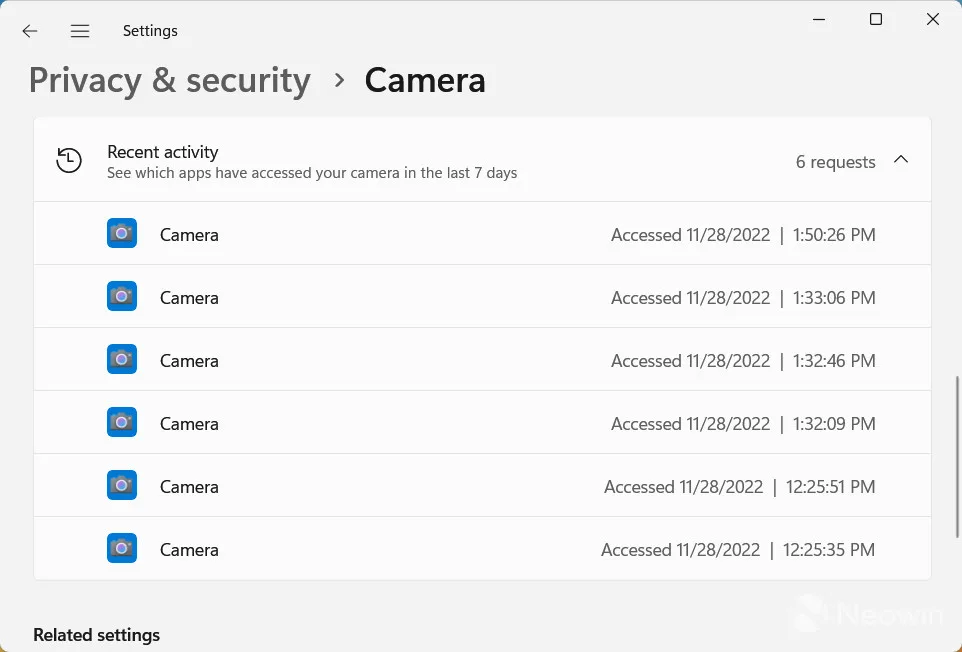
On Windows, open Settings → Privacy & Security → Camera, scroll down, and see which apps most recently accessed the camera. The top entry is usually the culprit.
On macOS, click the green camera LED. macOS now displays a small indicator in the menu bar showing which app is using the camera.
Close it properly
A lot of users quit the app but leave a helper process running. On Windows, check the system tray (the icons near the clock). Zoom, Teams, Slack, and Discord all run background processes that hold the camera open.
Right-click and select Quit rather than just closing the window.
Force-restart the camera subsystem
If you can't find the offending app but the camera is still locked:
- Windows: Open Services (search "Services" in Start), find Windows Camera Frame Server, right-click and Restart.
- macOS: Use the
killall VDCAssistantcommand from the previous section.
Testing Your Webcam Before an Important Meeting
Don't wait until 30 seconds before a call to find out your webcam doesn't work. Run a full test the night before.
Quick in-browser test
Several reputable webcam test sites pull up your camera and microphone in one click. No downloads, no signup. They work in Chrome, Firefox, Edge, and Safari.
Test inside the actual app you'll use
Browser tests confirm hardware works, but they don't confirm the meeting app has permission. Run a test meeting in Zoom, Teams, or Google Meet:
- Zoom: Settings → Video → check the preview.
- Teams: Settings → Devices → make a test call.
- Google Meet: Join the test room at
meet.google.com.
Check the microphone too
Most built-in webcam modules include a microphone array. If your video works but audio doesn't, check:
- The OS microphone permission (separate from the camera permission).
- The default input device in your meeting app.
- That the laptop's microphone mute key isn't toggled on.
A pre-meeting checklist
| Time before meeting | Action |
|---|---|
| 24 hours | Run a webcam test site, confirm hardware works |
| 1 hour | Open your actual meeting app, run a test call |
| 10 minutes | Close other apps that might grab the camera |
| 2 minutes | Check lighting and audio levels |
What to Do If the LED Light Stays On When Nothing's Running
This is the one webcam symptom you should never ignore. The LED indicator is hardwired to the camera module on most laptops. If it's on with no app open, something outside your control is accessing the camera.
First steps to rule out false positives
Some apps finish background tasks after you close them. Wait five minutes. If the LED is still on, treat it as a real warning.
Check for malware
Disconnect from Wi-Fi. Run a full scan with your antivirus. Then run a second opinion scanner like Malwarebytes Free.
Remote Access Trojans (RATs) are the most common cause of camera hijacking. Aggregate security reports from CISA and major antivirus vendors confirm RAT infections are rising, especially on older laptops.
Cover the camera physically
Until you've cleared the system, cover the webcam with opaque tape or a sliding cover. The LED being on means the camera sensor is active. A piece of tape is the only guaranteed physical block.
Per CISA's guidance on webcam security, covering your camera is a recommended precaution even after a clean scan.
Reinstall your OS if needed
If scans find nothing but the LED still misbehaves, back up your data and reinstall macOS or Windows. This is the nuclear option, but it's the only way to rule out a deeply hidden infection.
Using Your Phone as a Webcam When the Built-In Camera Fails
If your laptop's webcam is genuinely broken and you need a quick replacement, your phone can step in. The image quality is often better too.
Free and paid options
- Continuity Camera (Apple): Built into macOS Ventura and later. Mount your iPhone, select it as the camera in any video app. No extra software needed.
- DroidCam (Android and iOS): Free with a paid Pro tier. Works over Wi-Fi or USB.
- EpocCam (iOS): Paid, but reliable and low-latency.
- Camo (iOS and Android): Paid, with deep manual controls.
How to set up DroidCam on Windows
- Install the DroidCam app on your phone from the Play Store.
- Install the DroidCam client on your laptop from the developer's site.
- Connect both devices to the same Wi-Fi network.
- Open the DroidCam app on your phone. It shows an IP address.
- Open the DroidCam client on your laptop. Enter the IP address.
- Select "DroidCam" as your camera in Zoom, Teams, or your browser.
USB connections are more stable than Wi-Fi. For critical meetings, use a cable.
Performance expectations
Most phones can deliver 1080p at 30fps as a webcam. That's a real upgrade over a 720p built-in camera. Latency is slightly higher than a built-in module, but it's not noticeable in normal conversations.
Built-In Webcam vs External USB Webcam: When to Upgrade
The built-in camera is fine for casual calls, but external webcams pull ahead in three areas: image quality, low-light performance, and microphone quality.
When to stick with the built-in camera
- You take fewer than five video calls a week.
- Your laptop already has a 1080p camera (most MacBooks, Dell XPS, Surface devices).
- Privacy and portability matter more than image quality.
When to upgrade to an external webcam
- You're on video calls more than an hour a day.
- Your built-in camera is 720p (common on budget laptops).
- You need sharper video for streaming, teaching, or content creation.
- Your lighting is poor and you need a sensor that handles low light.
Specs worth comparing
| Feature | Built-in typical | External typical |
|---|---|---|
| Resolution | 720p | 1080p or 4K |
| Frame rate | 30fps | 30 to 60fps |
| Autofocus | Fixed focus | Autofocus |
| Microphone | Basic mono or stereo array | Better quality, sometimes dual |
| Low-light performance | Limited | Significantly better |
| Price | Included | $50 to $200 |
Popular external options include the Logitech C920 (a long-time standard), the Logitech Brio (4K), and the Insta360 Link (AI tracking). Manufacturer specs confirm all three work as plug-and-play on Windows and macOS without driver installation.
Webcam Won't Turn On: Quick Decision Guide by Symptom
If you've skipped around the article, start here. Match your symptom to the most likely fix.
Black screen in every app
Start with OS-level permissions. On Windows, that's Settings → Privacy & Security → Camera. On macOS, it's System Settings → Privacy & Security → Camera.
If permissions are correct, reinstall the camera driver.
Works in one app but not another
That's an app-specific permission grant. Revoke and re-grant access in your OS settings for the failing app. Then reinstall that app.
LED on with nothing running
Treat as a potential security issue. Disconnect from the internet, scan for malware, and physically cover the camera until clean.
Camera app missing
On Windows 11, install it as an optional feature in Settings → Apps → Optional features. On ChromeOS, install it from the Google Play Store.
Camera worked yesterday, broken today
Most likely cause: a Windows Update or macOS update replaced the driver. Roll back the driver in Device Manager (Windows) or run the VDCAssistant kill command (macOS).
Image is upside-down or sideways
A bad driver or a misbehaving app. Reinstall the camera driver. If it persists in just one app, check that app's video rotation settings.
Audio works, no video
OS-level camera permission is off. Browser-level permission is denied. Or another app is using the camera.
Work the checklist from the top.
Frequently Asked Questions
Why is my laptop camera not detected at all?
If your OS doesn't see the camera at all, the issue is hardware or driver level. On Windows, check Device Manager under "Cameras" or "Imaging Devices." On macOS, check System Information → USB. If it's missing there, try a BIOS or firmware reset.
If still missing, the webcam module is likely physically disconnected or damaged.
How do I know if my webcam is actually being used?
Watch the LED indicator next to the lens. On Windows, you can also check Settings → Privacy & Security → Camera → Recent activity. On macOS, click the green LED indicator in the menu bar to see which app is using the camera right now.
Can a website turn on my webcam without me knowing?
No. Modern browsers require explicit permission before any site can access the camera. If a site tries to access your webcam, you'll see a permission prompt.
If you've denied it in the past, the site cannot silently turn it back on.
Should I cover my webcam when not in use?
Yes. CISA and most security professionals recommend it. A piece of opaque tape or a sliding cover is the only 100% physical block against unauthorized access.
Software permissions can be bypassed by malware. A piece of tape cannot.
How long do built-in laptop webcams last?
Most laptop webcams last the lifetime of the laptop itself, since they're integrated into the display assembly. Failure is rare unless there's physical damage from drops, pressure on the lid, or liquid spills. Driver and software issues are far more common than hardware failure.
Will turning on my webcam drain my battery faster?
Yes, slightly. The camera sensor uses a small amount of power, and the encoding work adds CPU load. On a modern laptop, expect 1 to 3% faster battery drain during a video call compared to audio-only.
Why does my webcam work in the Camera app but not in Zoom or Teams?
That's an app-level permission problem. The OS trusts the Camera app, but Zoom or Teams needs its own grant. On Windows, toggle that app on under Settings → Privacy & Security → Camera.
On macOS, re-grant it under System Settings → Privacy & Security → Camera, then quit and reopen the app.
Do I need to install drivers for a built-in webcam?
Usually no. Windows and macOS ship with generic drivers that work out of the box. Manufacturer drivers from Dell, HP, Lenovo, or ASUS unlock extras like Windows Hello, but basic video calls work without them.
Can I use my laptop webcam on two apps at the same time?
No. The OS grants exclusive access to one app at a time. If Teams is using the camera, Zoom will show a black screen.
Quit the first app fully (check the system tray on Windows) before opening the second.
How do I turn the webcam off completely?
Close the shutter if your laptop has one. Disable camera access in your OS privacy settings. Or disable the device in Device Manager (Windows) for a hard cutoff.
A piece of opaque tape works too if you want zero software dependence.
Will a VPN block my webcam?
A VPN doesn't directly block the camera, but some corporate VPNs add policies that restrict camera access. If your webcam stops working after connecting to a VPN, check with your IT department.