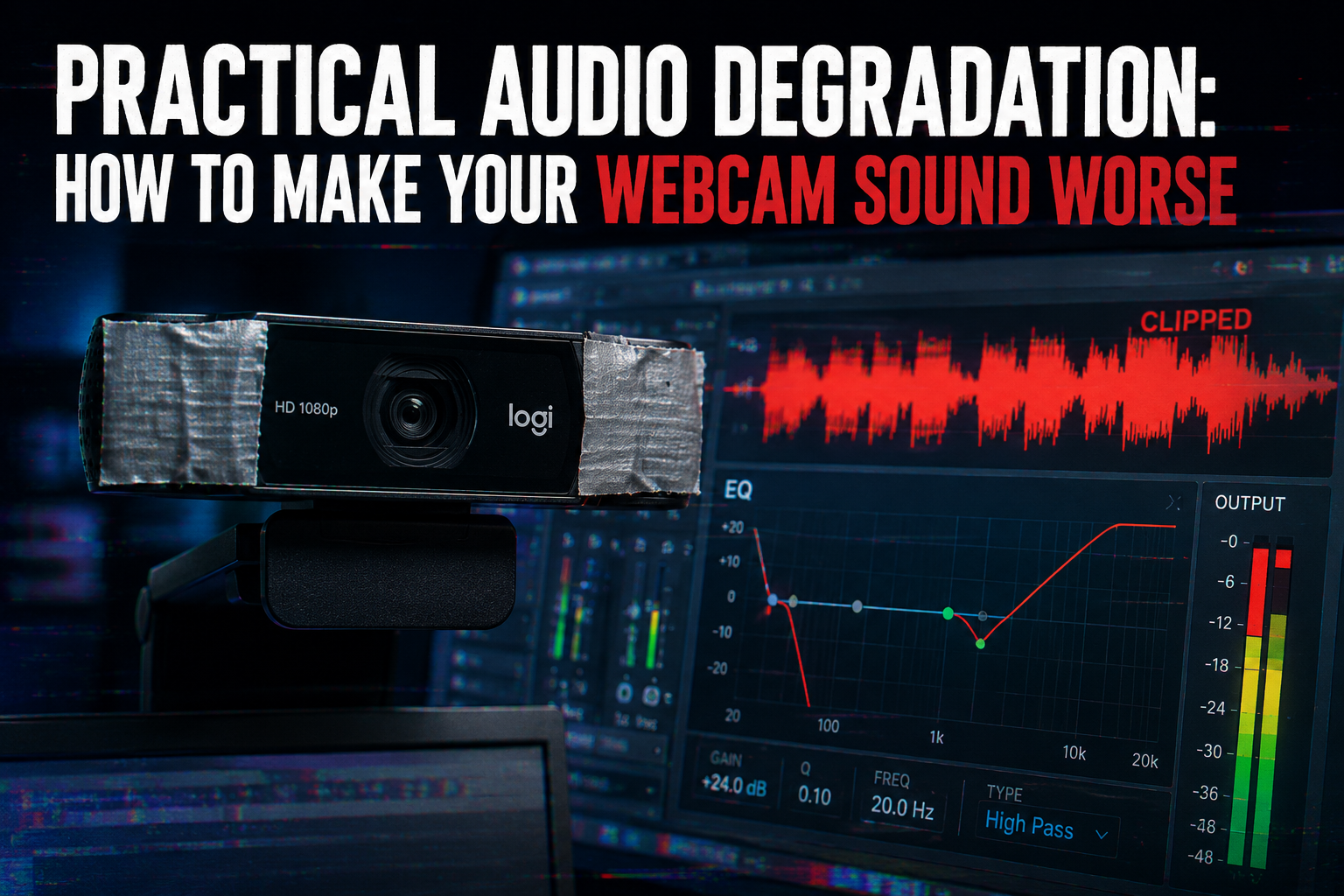
Deliberately making your Logitech 1080p Pro Webcam sound worse involves a combination of environmental factors, software settings, and physical interference. You can achieve poor audio quality by introducing background noise, utilizing suboptimal microphone placement, adjusting system audio settings to reduce fidelity, or even physically obstructing the webcam’s built-in microphones.
While most users aim for crystal-clear audio, there are specific scenarios where intentionally degrading sound quality becomes a creative or practical necessity. Whether you are testing audio resilience, simulating a lo-fi effect for content creation, or troubleshooting an audio setup by isolating variables, understanding how to worsen sound can be as valuable as knowing how to improve it. The Logitech 1080p Pro Webcam, such as models like the C920x or C920, typically features dual omnidirectional stereo microphones designed to capture natural and balanced sound with noise-reduction filtering. This inherent quality means you will need to actively counteract its design to achieve noticeably poor audio.
Undermining Audio Quality Through Software Settings
Software settings offer precise control over audio input, making them an excellent starting point for degrading your webcam’s sound. By manipulating these digital parameters, you can introduce unwanted characteristics like distortion, reduced clarity, or excessive noise.
Manipulating Operating System Audio Settings
Your computer’s operating system provides fundamental controls that impact microphone performance. Adjusting these can significantly worsen your Logitech webcam’s audio output. You must first ensure your Logitech webcam is selected as the default audio input device.
- Reduce Input Volume (Gain): Counter-intuitively, lowering the input volume or gain too much can make the audio sound distant and weak, forcing subsequent amplification that introduces noise. Conversely, setting the gain too high can cause clipping and distortion, especially if the input source is loud. Finding an extreme on either end will degrade quality. You can typically adjust this in Windows by right-clicking the speaker icon, selecting ‘Sounds’, navigating to the ‘Recording’ tab, choosing your webcam’s microphone, and adjusting the ‘Levels’ slider. For macOS, go to System Preferences or System Settings, then ‘Sound’, select the ‘Input’ tab, and adjust the ‘Input Volume’ slider.
- Disable Audio Enhancements: Operating systems often include built-in audio enhancements designed to improve sound. Disabling these features removes any corrective processing, allowing raw, potentially undesirable audio characteristics to pass through. In Windows, these settings might be found in the microphone’s properties under an ‘Enhancements’ tab.
- Change Audio Format/Quality: Lowering the default audio format (e.g., from 48 kHz, 16-bit to 8 kHz, 8-bit) can drastically reduce fidelity, introduce quantization noise, and make the audio sound compressed or “lo-fi.” This setting is usually found in the advanced properties of your microphone within the sound control panel.
Utilizing Logitech Software for Degradation
Logitech provides software like Logitech G HUB and Logitech Capture, which offer additional controls for their webcams. These tools, while designed for optimization, can also be leveraged to worsen audio.
- Turn Off Noise Reduction: The Logitech 1080p Pro Webcam often includes noise-reduction filtering. Disabling this feature will allow all ambient background noise to be captured clearly, leading to a much “worse” sound profile, especially in noisy environments. Within Logitech G HUB, you might find specific microphone settings to adjust or disable noise gates and noise reduction.
- Introduce Effects (if available): Some Logitech software or third-party plugins integrated with them might offer effects like equalization (EQ), distortion, or echo. Applying an aggressive EQ preset that accentuates undesirable frequencies (e.g., too much bass or harsh highs) or adding artificial distortion can severely degrade perceived quality.
Employing Third-Party Audio Software
For advanced degradation, third-party audio software provides powerful tools to process and intentionally corrupt your webcam’s audio stream. These applications offer effects that go beyond basic system settings.
- Digital Audio Workstations (DAWs) or Audio Editors: Software like Audacity, Adobe Audition, or even video editors like DaVinci Resolve and Premiere Pro, allow you to apply various destructive audio effects.
- Distortion: Apply distortion or overdrive effects to make the sound crunchy, abrasive, or clipped. Many online tools and software plugins offer this functionality.
- Echo/Reverb: Introduce excessive echo or reverb to make the audio sound like it’s in a large, empty room, creating a muddled and unclear effect.
- Bitcrushing/Sample Rate Reduction: These effects intentionally reduce the bit depth and sample rate of the audio, leading to a harsh, digital, and lo-fi sound.
- Aggressive Equalization (EQ): Drastically boost or cut frequencies in an unnatural way. For instance, removing all mid-range frequencies can make speech unintelligible. “Poor equalization range” is a common reason for bad audio quality.
- Virtual Audio Cables/Mixers: Tools like Voicemeeter allow you to route your webcam’s microphone through a virtual mixer, where you can then apply VST plugins for various degradation effects before sending the audio to your desired application.
Physical and Environmental Methods for Poor Audio
Beyond software, manipulating the physical environment and the webcam itself can profoundly impact audio quality. These methods often introduce natural, organic forms of degradation.
Suboptimal Microphone Placement
The Logitech 1080p Pro Webcam has dual omnidirectional microphones. Omnidirectional microphones pick up sound equally from all directions. Improper placement can significantly worsen the sound.
- Increased Distance: Placing the webcam far from the sound source (e.g., your mouth) will make your voice sound distant and thin, while increasing the pickup of room reverberation and background noise. “Get the mic as close to the source as is practical” is common advice for good audio, so do the opposite.
- Obstructed Placement: Positioning the webcam where the microphones are partially or fully blocked (e.g., behind a monitor, under a desk, or covered by objects) will muffle the sound and reduce clarity.
- Poor Angle: While less critical for omnidirectional mics, pointing the webcam away from the primary sound source can still reduce direct sound capture and increase room ambiance, making the voice less prominent. Placing the microphone below or behind the mouth can significantly compromise speech intelligibility by removing higher frequencies.
Introducing External Noise and Interference
The most straightforward way to make audio worse is to overwhelm the microphone with undesirable sounds.
- Background Noise: Place the webcam near sources of constant, irritating background noise.
- Fans or HVAC systems: The hum and whoosh of these appliances can easily mask speech.
- Traffic or construction: Open a window if you are near a busy street or construction site.
- Music or TV: Play loud music or have a TV on in the background, ensuring it competes with the desired audio.
- Keyboard and mouse clicks: Position the webcam close to your keyboard and mouse to maximize the capture of typing and clicking sounds.
- Electrical Interference: While less common with modern USB devices, some electrical devices can cause hum or static. Place the webcam near unshielded power cables, fluorescent lights, or other electronics that might emit electromagnetic interference.
Utilizing Poor Room Acoustics
Room acoustics play a critical role in sound quality. A room designed for poor acoustics will naturally degrade any microphone’s performance.
- Hard, Reflective Surfaces: Use a room with many hard, flat, reflective surfaces like bare walls, glass windows, tile floors, or large, uncovered tables. These surfaces cause sound waves to bounce excessively, creating echoes and reverberation. Excessive echo and reverberation lead to muddled and unclear audio.
- Empty Spaces: An empty room or one with minimal soft furnishings will exacerbate echo and reverberation. Soft furnishings, carpets, and curtains typically absorb sound, so remove them to promote poor acoustics.
- Parallel Walls: Rooms with parallel walls can create standing waves and flutter echoes, further degrading sound quality by reinforcing certain frequencies and causing rapid, distinct echoes.
As audio expert Stephen Byrne explains, “Equalization, or EQ… allows you to shape the frequency response of audio signals, emphasizing certain frequencies while attenuating or reducing others.” By understanding these principles, you can intentionally create environments where sound waves are poorly controlled, resulting in significantly worse audio capture.
Simulating Hardware Malfunctions (Without Damage)
While direct damage to your webcam is not advisable, you can simulate conditions that would typically arise from faulty hardware or incorrect setup, leading to degraded audio.
- Partially Obstructing Microphones: Gently place a thin piece of fabric or tape over the microphone grilles. This will muffle the sound without permanently damaging the webcam. Be careful not to apply anything that could leave residue or block ventilation. The Logitech C920x, for example, features dual stereo mics. Obstructing these will directly impact the audio input.
- Using Incompatible or Generic Drivers: While Logitech webcams are often plug-and-play, sometimes forcing generic audio drivers or using outdated drivers (if available) can introduce instabilities or reduce performance. However, this carries risks of other system issues.
- Utilizing a Low-Quality USB Hub: If you connect the webcam through a very old or unpowered USB hub with many other devices, it might introduce minor electrical noise or bandwidth issues, though modern USB standards often mitigate this.
By experimenting with these diverse methods, you can effectively make your Logitech 1080p Pro Webcam sound significantly worse, achieving specific audio characteristics for your particular testing or creative needs.
FAQ About Degraded Webcam Audio
What is the easiest way to make my webcam mic sound muffled?
The easiest way to make your webcam mic sound muffled is by physically obstructing its microphones with a piece of cloth or tape. You can also place the webcam in an enclosed space that absorbs sound, such as inside a box or behind other objects, to achieve a muffled effect.
Can I make my Logitech webcam audio echo intentionally?
Yes, you can make your Logitech webcam audio echo intentionally. The most effective method is to place the webcam in a room with many hard, reflective surfaces and minimal soft furnishings, as this will naturally create significant reverberation. Alternatively, you can apply an echo or reverb effect using third-party audio editing software like Audacity or Adobe Audition.
How do I introduce static or background hum to my webcam’s sound?
To introduce static or background hum, increase the microphone’s input gain to a very high level in your operating system’s sound settings, which will amplify ambient electronic noise. You can also place the webcam near unshielded electrical devices, power cables, or old CRT monitors that might emit electromagnetic interference, causing a hum or buzz.
Will reducing the audio bitrate make the webcam sound worse?
Yes, reducing the audio bitrate will make the webcam sound worse. Lower bitrates mean less audio data is captured, leading to a loss of detail, increased compression artifacts, and an overall lower-fidelity, “lo-fi” sound quality. This is typically done through advanced audio software settings or export options if recording.
How does microphone placement affect bad audio quality for webcams?
Microphone placement drastically affects audio quality. For bad audio, placing the webcam far from the sound source, obstructing the microphones, or positioning them in an acoustically poor environment (e.g., facing a wall directly, in a corner) will result in thin, distant, muffled, or echoey sound, picking up more room noise than direct speech.
Conclusion
Intentionally degrading the audio quality of your Logitech 1080p Pro Webcam, whether for testing, artistic effect, or troubleshooting, involves a calculated approach. By understanding the core components of good audio — clear signal, minimal noise, and controlled acoustics — you can effectively reverse-engineer these principles to achieve an undesirable sound. Manipulating software settings like gain, disabling noise reduction, or applying aggressive digital effects provides precise control. Simultaneously, physical interventions such as poor microphone placement, introducing distracting background noise, and utilizing acoustically reflective environments offer organic ways to worsen audio. Each method allows you to transform the normally clear output of your Logitech webcam into something distinctly “worse,” fulfilling your specific project requirements.