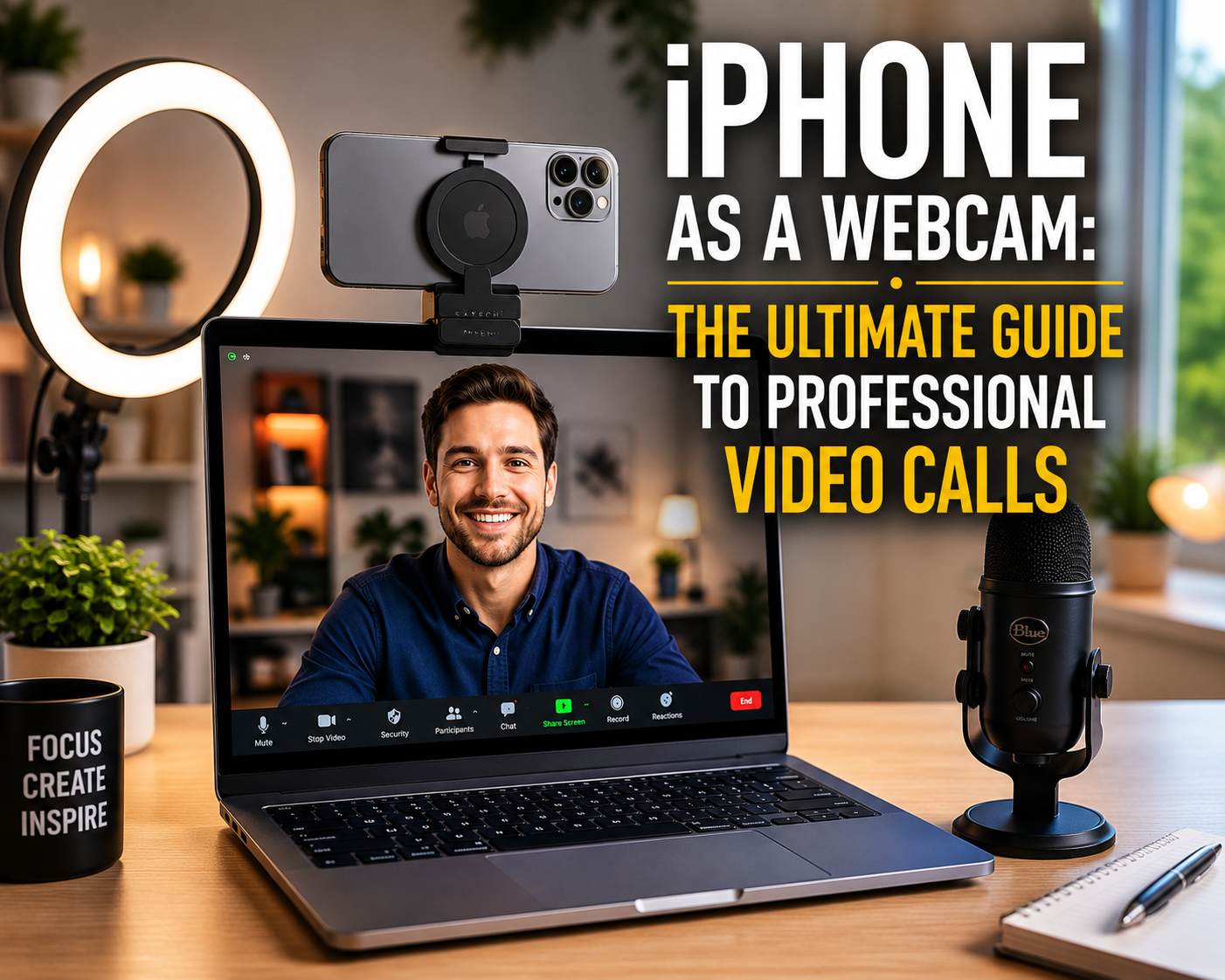
Transforming your iPhone into a high-quality webcam is not just possible, it’s remarkably easy and incredibly effective. Whether you’re aiming for crisp, clear video on your next client meeting, streaming a gaming session, or connecting with loved ones, your iPhone can dramatically upgrade your visual presence without requiring a dedicated webcam purchase. You can achieve professional-grade video quality using either Apple’s built-in Continuity Camera feature with macOS or through various third-party applications compatible with both Windows and older macOS versions.
Many people settle for their computer’s built-in webcam, often resulting in grainy, poorly lit footage. However, the advanced camera technology in modern iPhones offers a significant leap in video fidelity, dynamic range, and low-light performance. This guide will walk you through the practical steps, essential accessories, and expert tips to leverage your iPhone’s camera for a truly superior webcam experience, ensuring you look your best every time you go live.
Why Your iPhone Makes an Amazing Webcam
Your iPhone is more than just a phone; it’s a powerful pocket computer with a sophisticated camera system. Utilizing it as a webcam offers several compelling advantages over traditional webcams or integrated laptop cameras.
Unmatched Video Quality
Modern iPhones feature some of the best cameras available in any device, often surpassing dedicated webcams that cost hundreds of dollars. They boast large sensors, advanced computational photography, and excellent low-light performance. This means sharper images, more accurate colors, and better detail in your video calls. The iPhone’s wider aperture lenses also create a more pleasing depth of field, artfully blurring your background to keep the focus on you. According to a 2024 analysis by Counterpoint Research, high-end smartphone cameras continue to drive innovation in the mobile photography market, directly benefiting their webcam potential.
Portability and Convenience
Your iPhone is already with you, making it an incredibly convenient option. You don’t need to carry extra gear or remember another device when you travel. The seamless integration with Apple’s ecosystem, especially with Continuity Camera, makes setup a breeze for Mac users.
Cost-Effectiveness
For many, the cost of a high-quality, standalone webcam can be a deterrent. By using your existing iPhone, you can achieve superior results without an additional investment. This makes it an incredibly budget-friendly solution for enhancing your video setup.
Getting Started: Apple’s Built-in Continuity Camera
For users running macOS Ventura or later and iOS 16 or later, Apple offers a native solution called Continuity Camera. This feature allows your Mac to automatically recognize and use your iPhone as a webcam without installing any third-party software.
Requirements for Continuity Camera
To use Continuity Camera, ensure your devices meet these specific criteria:
- iPhone: iPhone XR or later with iOS 16 or later.
- Mac: Mac running macOS Ventura or later.
- Connectivity: Both devices must be signed in to the same Apple ID. They need to have Wi-Fi and Bluetooth turned on. Your iPhone should not be sharing its cellular connection.
- Physical Setup: Your iPhone needs to be near your Mac, locked, and in a stable position.
Step-by-Step Setup
Setting up Continuity Camera is incredibly straightforward. You primarily manage it from your Mac.
1. Update Your Devices: First, ensure both your iPhone and Mac are running the latest compatible software. Go to Settings > General > Software Update on your iPhone and System Settings > General > Software Update on your Mac.
2. Position Your iPhone: Place your iPhone in a suitable mount or stand. It should be stable and positioned to capture your desired angle. For the best quality, use the rear-facing wide-angle camera.
3. Open a Video App on Your Mac: Launch any video conferencing or recording application on your Mac. Examples include FaceTime, Zoom, Google Meet, or Photo Booth.
4. Select Your iPhone as the Camera: In the video application, navigate to the video settings or preferences. You should see your iPhone listed as an available camera option. Select it.
Your Mac will now stream video from your iPhone. Your iPhone will display a “Continuity Camera” message, indicating it’s actively being used as a webcam.
Advanced Continuity Camera Features
Continuity Camera offers more than just basic video. It includes several advanced features that can enhance your video calls significantly.
- Center Stage: Available on some iPhone models (like the iPhone 11 and newer), Center Stage uses machine learning to keep you centered in the frame, even if you move around.
- Desk View: This innovative feature uses the iPhone’s Ultra Wide camera to simultaneously show your face and an overhead view of your desk. It’s perfect for demonstrating objects or sketching.
- Studio Light: This effect dims the background and brightens your face, simulating studio lighting without extra equipment.
- Portrait Mode: Blurs the background, similar to how it works with photos, to create a professional depth-of-field effect.
“Apple’s integration of Continuity Camera is a game-changer for Mac users,” says technology analyst Sarah Chen of Tech Insights Group. “It leverages existing hardware to deliver a premium experience without any added complexity, truly demonstrating the power of their ecosystem.”
Exploring Third-Party Apps for Enhanced Control
While Continuity Camera is excellent for macOS users, those on Windows or older macOS versions need third-party applications. These apps often provide more advanced controls, customization options, and compatibility across different operating systems.
Camo by Reincubate
Camo is widely regarded as one of the most polished and feature-rich options for turning your iPhone into a professional webcam. It offers incredible control over your iPhone’s camera settings.
- Key Features: granular control over lens selection, focus, exposure, white balance, zoom, and even advanced color grading (LUTs). It supports both front and rear cameras.
- Compatibility: Mac (macOS 10.15 or later) and Windows (Windows 10 or later). Requires iOS 12 or later on your iPhone.
- Pricing: Offers a free version with essential features and a Pro subscription that unlocks all advanced controls and removes watermarks.
- Usage: Install the Camo app on your iPhone and the Camo Studio software on your computer. Connect your iPhone via USB (recommended for stability and charging) or Wi-Fi.
EpocCam by Elgato
Developed by Elgato, a company known for its streaming hardware, EpocCam is another popular choice. It’s particularly favored by streamers and content creators.
- Key Features: High-quality video, low latency, and compatibility with popular streaming software like OBS Studio. It supports various resolutions up to 1080p.
- Compatibility: Windows 10 or later and macOS 10.14 or later. Requires iOS 13 or later on your iPhone.
- Pricing: A free version is available with a watermark and lower resolution. A one-time purchase unlocks full features and removes the watermark.
- Usage: Download the EpocCam app on your iPhone and the driver software on your computer. Connect via Wi-Fi or USB.
NDI HX Camera
For those involved in professional video production or advanced streaming setups, the NDI HX Camera app is an incredibly powerful tool. NDI (Network Device Interface) is a protocol that allows video and audio to be shared over a standard IP network.
- Key Features: Turns your iPhone into an NDI source, making it discoverable by any NDI-compatible software or hardware on your network. Offers very low latency and high quality, ideal for multi-camera productions.
- Compatibility: Works with any NDI-enabled software or hardware, including OBS Studio, vMix, and TriCaster. Requires iOS 12 or later.
- Pricing: Typically a one-time purchase.
- Usage: Install the app on your iPhone. On your computer, use NDI tools or software that supports NDI input to receive the stream.
The choice between built-in Continuity Camera and third-party apps often comes down to your operating system and desired level of control. Here’s a quick comparison:
| Feature | Continuity Camera (Apple) | Camo (Reincubate) | EpocCam (Elgato) |
|---|---|---|---|
| Operating System Compatibility | macOS Ventura+ | macOS, Windows | macOS, Windows |
| iPhone Requirements | iPhone XR+, iOS 16+ | iOS 12+ | iOS 13+ |
| Connectivity | Wi-Fi (wireless only) | USB, Wi-Fi | USB, Wi-Fi |
| Advanced Controls (Focus, Exposure, WB) | Limited (auto/Mac controls) | Extensive | Moderate |
| Special Features | Center Stage, Desk View, Studio Light, Portrait Mode | Color grading, custom watermarks, greenscreen effects | OBS Studio integration, low latency |
| Pricing Model | Free (built-in) | Free (basic) / Subscription (Pro) | Free (basic) / One-time purchase (Pro) |
| Best For | Mac users wanting simple, high-quality video | Users needing granular control and cross-platform support | Streamers and gamers on a budget |
Essential Accessories for Your iPhone Webcam Setup
While your iPhone can technically work as a webcam on its own, a few accessories can significantly enhance your experience and professionalism.
Mounts and Stands
A stable mount is perhaps the most crucial accessory. It ensures your iPhone remains steady and at the correct angle. Look for options that:
- Offer Adjustability: Allows you to change height, tilt, and rotation.
- Are Sturdy: Prevents wobbling or accidental falls.
- Securely Hold Your iPhone: Many mounts are designed specifically for iPhones, providing a snug fit.
Popular choices include desktop stands, clamp mounts that attach to your monitor, or even magnetic mounts (like those compatible with MagSafe on newer iPhones). Apple even offers specific MagSafe mounts designed to clip onto your MacBook screen for Continuity Camera. Investing in a good mount ensures a professional, consistent frame. “A wobbly camera is an instant credibility killer,” states video production expert Michael Thompson of Visionary Media. “A proper mount is non-negotiable for a professional appearance.”
Lighting Solutions
Good lighting can transform even a decent camera into a great one. While your iPhone’s camera is excellent, it still benefits immensely from proper illumination.
- Ring Lights: These provide soft, even light that reduces shadows and makes you look bright and engaging. Many come with adjustable brightness and color temperature.
- LED Panels: Small, portable LED panels can offer more directional control and are great for highlighting specific areas or creating a three-point lighting setup.
- Natural Light: Position yourself facing a window during the day for the softest and most flattering light. Avoid having a window directly behind you, as this will backlight you and make you appear as a silhouette.
The goal is to illuminate your face evenly, minimizing harsh shadows and ensuring your features are clearly visible. A study published by the Journal of Applied Psychology in 2023 found that participants perceived individuals with better lighting in video calls as more competent and trustworthy.
External Microphones (Optional but Recommended)
While your iPhone’s built-in microphone is decent, it picks up a lot of ambient noise. For truly professional audio, an external microphone is a worthwhile upgrade.
- Lavalier Microphones: These small clip-on mics attach to your clothing, placing the microphone close to your mouth for clear audio.
- USB Microphones: Desktop USB microphones offer excellent sound quality and are easy to set up with your computer.
- Shotgun Microphones: Directional microphones that can be mounted above or below your iPhone, focusing on your voice and rejecting off-axis noise.
Remember, poor audio quality is often more distracting than poor video quality. Many experts argue that audio is 50% of your video presence. High-quality audio ensures your message is heard clearly and without effort.
Power Management
Using your iPhone as a webcam, especially for extended periods, can drain its battery quickly. Keep your iPhone charged by connecting it to a power source during your calls. Many mounts also include a pass-through charging port, allowing you to keep your iPhone powered without cluttering your setup.
Optimizing Your iPhone Webcam for Professional Results
Once you have your iPhone set up, a few key adjustments can elevate your video quality from good to outstanding.
Positioning and Framing
The way you position yourself and your camera significantly impacts your on-screen presence.
- Eye Level: Position your iPhone so the camera lens is at eye level. This creates a natural, direct gaze and avoids unflattering upward or downward angles.
- Rule of Thirds: Imagine a grid over your screen. Position yourself slightly off-center, aligning your eyes with the top third line. This creates a more dynamic and visually appealing composition.
- Headroom: Leave a small amount of space above your head. Too much headroom makes you look small; too little makes you seem cramped.
- Distance: Sit far enough away so that your face and upper torso are visible. This allows for natural gestures and expressions.
Lighting Techniques
Beyond simply having light, how you use it makes a difference.
- Frontal Lighting: Always aim for light coming from in front of you. This illuminates your face evenly and reduces harsh shadows.
- Soft Light: Diffused light is more flattering. Use a softbox with an LED panel, or bounce light off a wall if using a ring light.
- Avoid Backlighting: Never sit with a bright window or light source directly behind you. This will turn you into a silhouette.
Audio Quality Matters
Even with an external microphone, consider these tips:
- Quiet Environment: Choose a quiet room free from echoes, street noise, or household distractions.
- Microphone Placement: If using a lavalier, place it about 6-8 inches below your chin. For desktop mics, ensure it’s positioned to capture your voice directly without picking up keyboard clicks or other ambient sounds.
- Test Your Audio: Always do a quick sound check before going live to ensure your microphone is working correctly and your levels are optimal.
Background Management
Your background is an extension of your professional image.
- Clean and Tidy: Ensure your background is clean, uncluttered, and free of distracting items.
- Simple and Professional: A plain wall, a bookshelf, or a tidy desk can all work well. Avoid overly busy patterns or personal items that might be distracting.
- Virtual Backgrounds: If a physical background isn’t an option, many video conferencing apps offer virtual backgrounds. However, these often work best with good lighting and a solid, contrasting background (like a green screen).
Troubleshooting Common iPhone Webcam Issues
Even with a perfect setup, you might encounter occasional hiccups. Here’s how to address some common problems.
Connectivity Problems
- Wi-Fi Issues: If using a wireless connection, ensure both your iPhone and computer are on the same Wi-Fi network. Check for network congestion or interference. Moving closer to your router or switching to a 5GHz network can help.
- USB Connection: For wired setups, ensure you’re using a quality USB cable (preferably the original Apple cable). Try a different USB port on your computer.
- Restart Devices: A simple restart of both your iPhone and computer can resolve many connectivity glitches.
App-Specific Glitches
- Update Apps: Always ensure your iPhone webcam app and its corresponding desktop client are updated to the latest version. Developers frequently release bug fixes and performance improvements.
- Check Permissions: Verify that the app has permission to access your iPhone’s camera and microphone in your iPhone’s privacy settings.
- Reinstall: If an app is consistently misbehaving, try uninstalling and reinstalling both the iPhone app and the desktop software.
Performance and Battery Drain
- Close Background Apps: On your iPhone, close any unnecessary apps running in the background to free up resources and reduce battery consumption.
- Lower Resolution/Frame Rate: If you’re experiencing lag or excessive heat, try reducing the video resolution or frame rate within your webcam app’s settings.
- Keep Charged: As mentioned, keep your iPhone plugged into power during extended use. This prevents battery drain and potential performance throttling as the battery gets low.
Frequently Asked Questions About Using Your iPhone as a Webcam
Can I use my iPhone as a webcam for Windows computers?
Yes, you can absolutely use your iPhone as a webcam for Windows. Apple’s Continuity Camera is exclusive to macOS, but several excellent third-party applications like Camo and EpocCam offer full compatibility with Windows PCs.
Do I need a special cable to connect my iPhone as a webcam?
For most third-party apps, a standard Lightning-to-USB cable (or USB-C-to-USB-C for newer iPhones) is sufficient for a wired connection. Some apps also support wireless connections over Wi-Fi, but USB is often recommended for stability and charging.
What iPhone models are best for webcam use?
Newer iPhone models (iPhone 11 and later) generally offer the best video quality due to their advanced cameras and features like Center Stage. However, most iPhones from the iPhone X onward can provide a significant upgrade over a standard built-in laptop webcam.
Will using my iPhone as a webcam drain its battery quickly?
Yes, actively streaming video can consume significant battery power. It is highly recommended to keep your iPhone plugged into a charger while using it as a webcam, especially for longer calls or recording sessions, to avoid interruptions.
Can I use my iPhone’s front camera as a webcam?
While most applications allow you to select either the front or rear camera, the rear-facing cameras on iPhones generally offer superior image quality, resolution, and low-light performance. For the best visual results, the main rear camera is usually the preferred choice.
Is a wired or wireless connection better for iPhone webcams?
A wired USB connection typically offers greater stability, lower latency, and simultaneously charges your iPhone. Wireless connections are more convenient but can be susceptible to Wi-Fi interference, potentially leading to lower quality or dropped connections.
Conclusion: Elevate Your Video Presence
Your iPhone is a powerful tool capable of delivering a professional-grade webcam experience, far exceeding the capabilities of most built-in laptop cameras and many dedicated webcams. By understanding the options available—from Apple’s seamless Continuity Camera to versatile third-party applications like Camo and EpocCam—you can quickly set up a superior video presence.
Remember that hardware is only part of the equation. Strategic use of accessories like mounts and lighting, combined with thoughtful optimization of your framing, audio, and background, will transform your video calls. Embrace the potential of your iPhone to look and sound your best, connecting more effectively and confidently in every virtual interaction in 2026 and beyond.