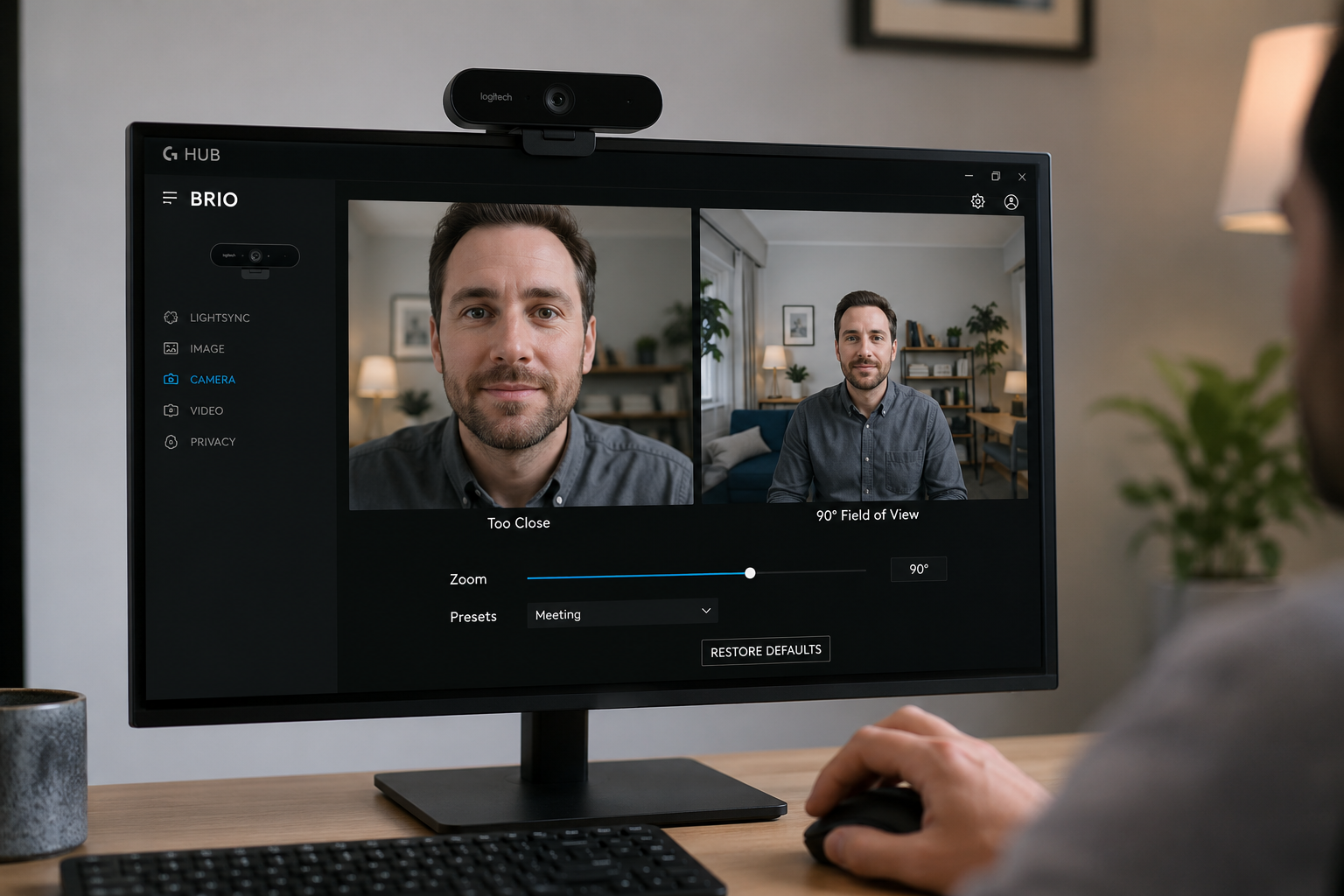
Many Logitech webcam users find themselves needing a broader perspective during video calls, streaming sessions, or content creation. The primary way to zoom out on most Logitech webcams is through Logitech’s proprietary software, such as Logitech G HUB or Logitech Capture, or by adjusting settings directly within your chosen video conferencing or streaming application. These tools provide digital zoom controls that allow you to effectively “zoom out” and widen your field of view, capturing more of your environment.
Achieving the perfect framing for your webcam can significantly impact your professionalism and how you present yourself online. Whether you’re in a virtual meeting, recording a tutorial, or engaging with your audience, controlling your webcam’s zoom ensures you convey the right impression. This guide will walk you through the practical steps and essential considerations for maximizing your Logitech webcam’s field of view.
Understanding Logitech Webcam Zoom Capabilities
Before diving into specific software, it’s crucial to understand how webcam zoom generally works and what limitations you might encounter. Most consumer-grade webcams, including many Logitech models, rely on digital zoom rather than optical zoom.
Digital Zoom vs. Optical Zoom: What You Need to Know
The distinction between digital and optical zoom is fundamental to managing your webcam’s view. Optical zoom involves the physical movement of lens elements to magnify or de-magnify an image, much like a traditional camera lens. This method preserves image quality because it adjusts the light entering the sensor before the image is captured.
In contrast, digital zoom works by cropping a section of the image captured by the camera’s sensor and then enlarging it to fill the frame. This process essentially “stretches” the pixels, which can lead to a noticeable decrease in image quality, resulting in a more pixelated or softer picture, especially when zoomed out significantly. Most webcams on the market are equipped with digital zoom for short-distance video shooting.
For Logitech webcams, particularly those without a physical pan/tilt/zoom (PTZ) mechanism, any “zoom out” functionality you use will almost certainly be digital. This means you’re widening the view by reducing the digital crop, rather than by a physical lens adjustment.
Field of View (FoV) and Your Webcam
Your webcam’s Field of View (FoV) refers to the angular extent of the scene captured by the camera. A wider FoV means the camera sees more of the area in front of it, while a narrower FoV focuses on a smaller segment. Logitech webcams often come with fixed or adjustable FoV options. For example, the Logitech Brio offers selectable diagonal FoV presets like 65°, 78°, and 90° through its software.
When you “zoom out” on a Logitech webcam using software, you are typically adjusting its digital crop to achieve a wider FoV. This is why understanding your webcam’s native FoV and the capabilities of its companion software is key to getting the look you want.
Primary Methods to Zoom Out on Logitech Webcams
Logitech provides several software solutions that allow you to control your webcam’s settings, including zoom and field of view. The best method depends on your specific webcam model and your intended use.
Method 1: Using Logitech G HUB (Recommended for Gaming/Advanced Users)
Logitech G HUB is a versatile software designed for controlling a wide range of Logitech gaming peripherals, but it also provides comprehensive settings for many Logitech webcams. It offers detailed controls over camera modes, zoom, focus, and exposure.
Installation and Setup
First, ensure you have Logitech G HUB installed. You can download it from the official Logitech website. After installation, launch the software. It should automatically detect your connected Logitech webcam. If your webcam does not appear, try unplugging and replugging it, or restart the G HUB software.
Navigating Camera Controls
Once your webcam is detected, click on its icon within G HUB. You will typically see a preview of your camera feed. Navigate to the “Camera” or “Video” settings tab. Here, you’ll find various controls, including those for zoom.
Adjusting Zoom and Pan/Tilt
Look for a “Zoom” slider or similar control. To zoom out, drag the slider to the left or decrease the numerical value. This will expand your field of view. Some webcams also offer pan and tilt controls, allowing you to horizontally and vertically adjust the camera’s view within the digitally zoomed image. After adjusting, the settings are often saved as a profile, so you won’t have to reconfigure them every time.
Method 2: Using Logitech Capture (For Content Creators)
Logitech Capture is a dedicated video recording and streaming software that also offers extensive camera customization options. It’s particularly useful for content creators who need fine-grained control over their video output.
Download and Installation
Download Logitech Capture from the official Logitech website. Install the software and launch it. Like G HUB, it should detect your connected webcam.
Accessing Camera Settings
Within Logitech Capture, select your webcam as the video source. You will find settings for “Field of View,” “Aspect Ratio,” and “Resolution.”
Fine-tuning Your Field of View
Logitech Capture allows you to select your desired field of view, which directly correlates to zooming out. For example, on a Logitech Brio, you can choose between 65°, 78°, or 90° diagonal FoV. Selecting a wider angle (e.g., 90°) will give you a more zoomed-out view. You can also adjust white balance, auto-focus, and frames-per-second settings here.
One notable feature of Logitech Capture is its ability to act as a virtual camera, allowing you to apply its settings (including zoom) to other applications like Zoom or OBS. This ensures your desired FoV is consistent across different platforms.
Method 3: Utilizing Native Operating System Camera Apps
While Logitech’s dedicated software offers the most control, your operating system’s built-in camera applications or settings might provide basic zoom functionality, especially if you prefer not to install additional software.
On Windows: The Camera App and Device Manager
Windows has a built-in Camera app that can access your webcam. While its zoom capabilities are often limited compared to Logitech’s software, it’s worth checking. You can open the Camera app, then look for any gear or settings icon to see if zoom adjustments are available. For more granular control or troubleshooting, the Device Manager allows you to manage webcam drivers, which can sometimes resolve issues preventing zoom functionality.
On macOS: Photo Booth or QuickTime (Limited Control)
macOS users can use applications like Photo Booth or QuickTime Player to access their webcams. However, these native apps typically offer very limited control over camera settings like zoom. For true zoom adjustment on a Mac with a Logitech webcam, Logitech’s own software (Logi Tune, G HUB, or Capture) is usually necessary.
Method 4: Adjusting Zoom within Video Conferencing and Streaming Software
Many popular video conferencing and streaming platforms include their own camera settings, some of which allow for zoom adjustments. These settings often override or work in conjunction with your webcam’s default configuration.
Zoom, Microsoft Teams, Google Meet
Applications like Zoom, Microsoft Teams, and Google Meet often have a “Video Settings” or “Device Settings” section where you can select your camera and sometimes adjust basic properties. While these built-in controls might be rudimentary, they can sometimes include a digital zoom slider or field of view options. For instance, if you’re using Logitech Capture as a virtual camera source, the zoom settings you apply in Capture will be reflected in these platforms.
OBS Studio and Streamlabs Desktop
For streamers, OBS Studio and Streamlabs Desktop offer significant control over camera sources. When you add your Logitech webcam as a video capture device, you can often right-click the source, go to “Properties,” and find options to configure the video. This might open a proprietary Logitech camera settings window or provide sliders for zoom, pan, and tilt. Using Logitech’s software in conjunction with OBS or Streamlabs, often by outputting the Logitech software’s feed as a virtual camera, is a common and effective strategy.
Troubleshooting Common Zoom-Out Issues
Sometimes, getting your webcam to zoom out isn’t straightforward. Here are common issues and their solutions.
When Zoom-Out Options Are Missing
If you can’t find zoom controls, first ensure your specific Logitech webcam model supports digital zoom out. Not all entry-level models may have this feature. Next, confirm you have the correct and latest Logitech software installed (G HUB, Capture, or Logi Tune, depending on your model). Older software versions or generic drivers might lack these options.
Resolving Software Conflicts
One common problem is when multiple applications try to access your webcam simultaneously, or when a background process “hogs” the camera. This can prevent zoom controls from appearing or functioning correctly. Close all other applications that might be using your webcam (e.g., Zoom, Teams, other streaming software) before opening Logitech’s software. Check your operating system’s privacy settings to ensure the correct application has permission to access your camera.
Updating Drivers and Firmware
Outdated webcam drivers or firmware can cause various issues, including non-functional zoom controls. Always ensure your webcam’s drivers and firmware are up to date. Visit the official Logitech support website for your specific webcam model to download the latest versions. A clean reinstallation of the Logitech software and drivers can also resolve persistent issues.
Optimizing Your Webcam’s Field of View for Different Scenarios
The ideal “zoom out” level depends heavily on what you’re using your webcam for. Thinking intentionally about your framing can significantly improve your presence.
For Professional Video Calls
For most professional video calls, a slightly wider, yet still focused, shot is usually preferred. Aim for a head-and-shoulders view with some room above your head and to the sides, creating a professional and inviting frame. This prevents you from appearing too close or cutting off parts of your face. Logitech Brio’s 65° or 78° FoV settings are often ideal for this purpose.
For Live Streaming and Content Creation
Streamers and content creators often benefit from a wider FoV (more zoomed out) to show more of their background, desk setup, or to allow for more expressive body language. A 90° FoV can be excellent here, particularly if you have an interesting or well-organized background. Experiment with different zoom levels in your streaming software (like OBS) to find what best complements your content and brand.
For Casual Chats and Family Calls
For informal chats, personal preference dictates the zoom level. Some prefer a very wide shot to include family members or show off a room, while others might stick to a closer, more intimate frame. The beauty of digital zoom is the flexibility it offers to quickly adjust for any situation.
Comparing Logitech Software for Webcam Control
Logitech offers a few software options, each with slightly different strengths. Understanding these differences can help you choose the right tool for your needs.
| Feature | Logitech G HUB | Logitech Capture | Logi Tune / Options+ |
|---|---|---|---|
| Primary Use Case | Gaming gear control, webcam settings | Video recording, streaming, webcam control | Personal device control, webcam settings |
| Zoom/FoV Control | Yes, via slider/presets | Yes, detailed FoV selection (e.g., 65/78/90 degrees) | Yes, zoom in/out, color presets |
| Advanced Camera Settings | Extensive (exposure, focus, anti-flicker) | Extensive (white balance, autofocus, resolution, filters, chroma key) | Good (exposure, white balance, focus) |
| Virtual Camera Output | No (typically) | Yes, can output a processed video feed | No (typically) |
| Profile Saving | Yes, per game/application | Yes, up to six profiles | Yes, presets for settings |
| Compatibility | Wide range of Logitech devices, including many webcams | Specific Logitech webcams (e.g., C920 series, Brio) | Select Logitech models, including Brio |
| Current Support (2026) | Actively supported | Being phased out/discontinued for newer models | Actively supported for newer models |
Expert Insight on Webcam Usage
“In the rapidly evolving landscape of virtual communication and content creation, the ability to control your webcam’s field of view is more than just a technical adjustment—it’s a critical element of personal branding,” states Dr. Evelyn Reed, a leading expert in digital communication at the University of California. “A well-framed shot conveys professionalism and intentionality, preventing distractions and ensuring your message takes center stage. Prioritizing clear visuals, even with digital zoom limitations, can significantly enhance your online presence in 2026 and beyond.”
Frequently Asked Questions About Logitech Webcam Zoom
How do I reset my Logitech webcam zoom settings?
To reset your Logitech webcam zoom settings, open the Logitech software you are using (G HUB, Capture, or Logi Tune). Look for a “Default” or “Reset” button within the camera settings, or manually slide the zoom control back to its lowest or default value, often labeled as 0% or 100% (depending on the scale). Saved profiles within these applications can also help quickly revert to a preferred setting.
Can all Logitech webcams zoom out?
Most Logitech webcams that support zoom functionality utilize digital zoom, which allows them to “zoom out” to their widest native field of view. However, the extent of zoom-out and the precision of control can vary significantly by model. Older or more basic models might have limited or no zoom adjustment options.
Why does my Logitech webcam look too close?
Your Logitech webcam might look too close if its default settings are configured for a narrower field of view, or if a previous application or setting has digitally zoomed in. This is a common issue that can be resolved by using Logitech’s official software (G HUB, Capture, or Logi Tune) to adjust the zoom slider or select a wider field of view preset.
Is there a physical zoom lens on Logitech webcams?
The vast majority of consumer-grade Logitech webcams do not feature a physical, optical zoom lens. Instead, they rely on digital zoom, which is software-based cropping and enlargement of the image sensor’s output. Webcams with optical zoom are typically more expensive, larger, and found in specialized PTZ (Pan-Tilt-Zoom) cameras designed for larger meeting rooms.
Conclusion
Mastering the art of zooming out on your Logitech webcam is essential for crafting a compelling visual presence, whether for professional engagements or personal connections. By leveraging Logitech’s dedicated software like Logitech G HUB or Logitech Capture, you gain the most comprehensive control over your camera’s field of view and other crucial settings. Remember to distinguish between digital and optical zoom, understand your webcam’s native capabilities, and tailor your zoom level to suit each unique scenario. With a few simple adjustments, you can transform your webcam’s output, ensuring you always present your best self.