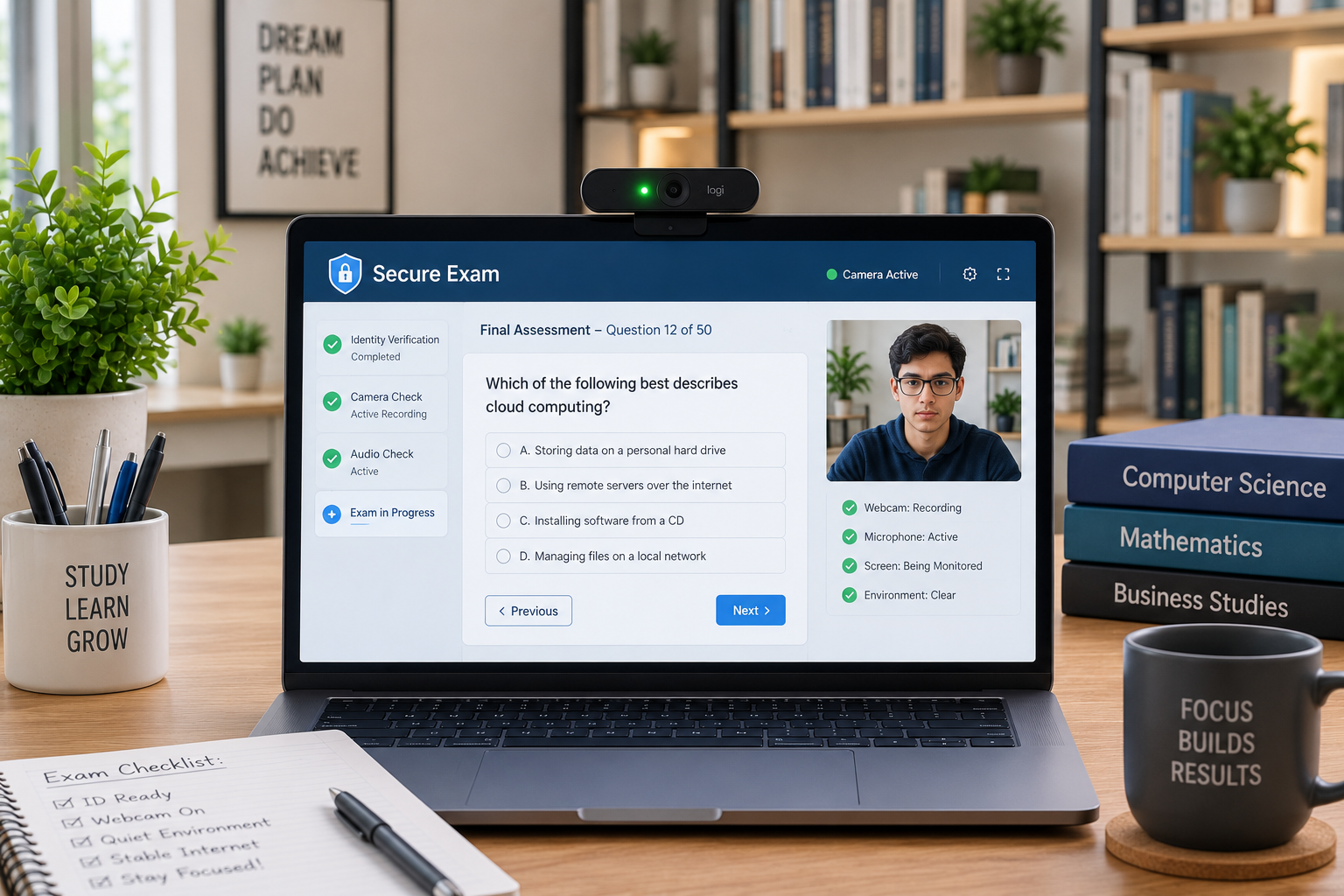
Respondus LockDown Browser with webcam, known as Respondus Monitor, enhances online exam security by recording students during non-proctored assessments. It uses a student’s webcam and microphone to capture video and audio of their testing environment. Artificial intelligence then analyzes this recording for suspicious behaviors, flagging potential integrity issues for the instructor to review after the exam.
For institutions relying on online assessments, maintaining academic integrity is a constant challenge. Respondus Monitor provides a robust, automated solution that deters cheating and helps ensure the validity of remote exams. This system acts as a digital proctor, extending the controlled environment of a physical testing center to any location where a student takes an exam. It’s crucial for both students and instructors to understand its functionality, from the initial setup to the post-exam review process, to maximize its effectiveness and minimize potential issues.
Understanding Respondus LockDown Browser at its Core
What is Respondus LockDown Browser?
Respondus LockDown Browser is a specialized web browser designed to secure the online testing environment within a learning management system (LMS).
It prevents students from accessing other applications, websites, or digital resources during an exam. The browser runs full-screen, blocking printing, copying, screen capture, and task switching.
How LockDown Browser Enhances Exam Security
LockDown Browser creates a highly restrictive environment. It effectively “locks down” the student’s computer, preventing access to any applications beyond the exam itself. This includes messaging apps, screen-sharing software, virtual machines, and remote desktops.
By disabling functions like printing and copy-pasting, it protects exam questions from being easily shared. The browser also disables right-click menus, function keys, and keyboard shortcuts that might allow students to bypass security measures.
An exam cannot be exited until the student submits it for grading, further reinforcing the secure testing conditions. LockDown Browser is considered a foundational component for securing online tests.
The Role of the Webcam: Respondus Monitor Explained
While LockDown Browser with webcam secures the digital environment, Respondus Monitor adds a crucial layer of proctoring by using the student’s webcam and microphone. Respondus Monitor is an add-on tool that records students during online, non-proctored exams.
This webcam feature allows for automated proctoring, where artificial intelligence (AI) analyzes the recording to detect suspicious behaviors. It aims to uphold academic integrity in remote settings.
How Respondus Monitor Works Step-by-Step for Students
When an instructor requires Respondus Monitor for an exam, students go through a guided “startup sequence” before the test begins. This sequence ensures the webcam and environment are properly set up for monitoring.
Environment Check and Facial Detection
The startup sequence typically begins
with a webcam check to confirm the device is working. Students then usually perform an environment check, recording a brief video of their surroundings to show their workspace is clear of unauthorized materials. This helps to ensure no forbidden items like books, notes, or other devices are within reach.
The system also conducts facial detection to ensure the student’s face is visible and properly lit. Students are advised to take the exam in a well-lit room, avoid backlighting, and keep their face unobstructed by hats or hands. If the facial detection is poor, the system may prompt the student to adjust their position or lighting.
Identity Verification
A critical step in the startup sequence is identity verification. Students are often required to show a valid photo ID to the webcam, which the system records. This helps confirm that the person taking the exam is indeed the registered student.
Some systems create a temporary facial template from the student’s face at the beginning of the exam. This template is used during the proctoring analysis to track the student’s presence and focus.
Continuous Monitoring and AI Analysis
Once the exam begins, Respondus Monitor continuously records the student’s webcam video and audio. An icon indicates that recording is active. The system utilizes artificial intelligence (AI) and advanced video analytics to analyze the session for suspicious behaviors.
The AI tracks facial movements, eye focus, and whether the head is turned away from the screen for a significant time. It can also detect if the student leaves the computer or if a different person appears in the camera’s view. Some versions may even assess typing patterns for irregularities.
What Behaviors Does Respondus Monitor Flag?
Respondus Monitor flags events that deviate from expected exam behavior. These flags serve as indicators for instructors to review.
Common Flagged Activities
The system is designed to identify various suspicious actions, including:
- Missing from frame: The student’s face is not detected for a period.
- Multiple persons in frame: Another individual is detected in the webcam view.
- Looking away from the screen: Prolonged periods where the student’s gaze is not directed towards the computer.
- Talking or suspicious noises: The microphone detects speech or other unexpected sounds.
- Using a phone or unauthorized device: While Lockdown Browser prevents on-computer access, Monitor helps detect physical devices in the testing area.
- Head movements: Significant head turns that suggest looking at external materials.
- Application switching attempts: Although Lockdown Browser prevents this, attempts may still be logged.
Instructors can adjust the sensitivity levels of the flagging system (e.g., Strict, Standard, Relaxed) depending on the exam’s needs. These flags are accompanied by a “review priority” (high, medium, or low) to help instructors prioritize their review.
Understanding the AI’s Limitations
It is crucial to understand that flags do not automatically equate to cheating. The AI identifies anomalies and suspicious patterns, but it cannot definitively determine intent. For instance, a student might be flagged as “missing from frame” if they briefly leaned back or adjusted their position. Accidental entry by a family member or a pet could trigger a “multiple persons in frame” flag.
Many flagged events are false positives. The system simply provides data points for the instructor to review. Dr. Kevin Yee, Director of the Center for Teaching and Learning at a major university, emphasizes, “Proctoring tools like Respondus Monitor provide valuable data, but the ultimate judgment of academic misconduct always rests with the human instructor. The technology is an aid, not a final arbiter.”
The Instructor’s Perspective: Reviewing Respondus Monitor Recordings
After students complete an exam, instructors gain access to detailed proctoring reports and video recordings of each session.
This allows faculty to efficiently review potential integrity concerns.
Accessing and Interpreting Proctoring Reports
Instructors access these reports through the LockDown Browser Dashboard within their learning management system. The dashboard provides a roster of students who took the exam, along with key information:
- Date and time of the attempt
- Duration of the exam session
- Assigned review priority (high, medium, or low)
- Overall accuracy of facial detection
The reports highlight flagged events on a video timeline, making it easy for instructors to jump directly to suspicious segments. Thumbnails often show the startup sequence and exam session, enabling quick navigation. Some systems also allow for screen recording, providing visual context of on-screen activity alongside the student’s webcam feed.
Making Decisions Based on Flagged Incidents
Instructors use the flagged events and video recordings to make informed decisions about academic integrity. They can watch the entire session or review specific flagged moments. It is crucial for instructors to use their professional judgment.
A high review priority or multiple flags do not automatically indicate cheating. The context of the situation, the student’s past behavior, and the nature of the flagged event must all be considered. For example, a student looking away from the screen for a moment might simply be thinking or resting their eyes, not consulting unauthorized materials. If screen recording is enabled, instructors can also see what was happening on the student’s screen, offering a more complete picture of the flagged incident.
Key Benefits of Using Respondus LockDown Browser with Webcam
Integrating Respondus LockDown Browser with Monitor offers significant advantages for educational institutions and instructors.
Enhanced Academic Integrity
The primary benefit is the strengthening of academic integrity in online assessments. By securing the browser and monitoring student behavior, the system creates a more equitable testing environment.
It deters students from attempting to cheat, knowing their actions are being recorded and analyzed. This increased confidence in online testing encourages more instructors to utilize digital assessments.
Flexibility for Remote Learning
Respondus Monitor enables students to take proctored exams from remote locations without needing to schedule a live proctor. This offers immense flexibility, allowing students to complete assessments at their convenience within an instructor-defined window.
This flexibility is particularly valuable for online programs and for students who may not have easy access to physical testing centers. It supports the scalability of remote education.
Deterrent to Cheating
The presence of a webcam recording and AI analysis acts as a powerful deterrent. Students are aware they are being monitored. This significantly reduces the temptation to engage in unauthorized activities.
Even if an incident is not immediately identified, the potential for review and subsequent disciplinary action discourages misconduct. Data from various institutions consistently shows a decrease in reported cheating incidents when such tools are implemented. For example, a study in 2023 indicated that academic integrity concerns dropped by approximately 30% in courses utilizing automated proctoring systems.
Addressing Student Concerns: Privacy and Technology
While effective, online proctoring tools like Respondus Monitor can raise valid concerns among students, primarily regarding privacy and technical requirements.
Data Privacy and Security Measures
Student privacy is a significant consideration. Respondus states that it follows a “privacy by design” approach. Key privacy features include:
- No live monitoring: Respondus Monitor does not involve live human proctors watching students during exams. The review is conducted post-exam by the instructor.
- Data ownership: Proctoring data is owned and controlled by the educational institution, not Respondus.
- Limited data collection: Only necessary personal data, such as device identification, facial template (temporary), image, voice, and student ID (if required), is processed. Biometric profiles are not permanently stored on Respondus servers.
- Data retention: Institutions set their own retention policies for proctoring results and videos. Data is typically destroyed within 6 to 18 months, or upon termination of agreements.
- Compliance: Respondus Monitor meets security requirements for various regulations, including FERPA (Family Educational Rights and Privacy Act), GDPR (General Data Protection Regulation), and CCPA (California Consumer Privacy Act).
- Encryption: All data transferred is encrypted from start to finish.
Despite these measures, some students express discomfort with webcam recording, viewing it as an invasion of privacy. Institutions aim to mitigate these concerns through clear communication in syllabi and providing privacy policies.
Technical Requirements and Troubleshooting Tips
Students need to meet specific technical requirements to use Respondus LockDown Browser and Monitor successfully. These include:
- Operating System: Compatible versions of Windows (10/11), macOS (12+), iPadOS (15+), or ChromeOS.
- Webcam & Microphone: A functioning internal or external webcam and microphone are essential.
- Internet Connection: A stable broadband connection is required, ideally with a minimum of 10Mbps download and 5Mbps upload speed for Monitor.
- RAM: A minimum of 4GB RAM is recommended when using Monitor.
Common issues include incompatible operating systems (e.g., Windows S mode), insufficient internet speed, or other applications interfering. Respondus provides a “Help Center” within the LockDown Browser for students to run webcam checks, system checks, and access a knowledge base for troubleshooting.
It is always recommended to perform these checks before an exam and to contact institution IT support if problems persist.
Best Practices for a Smooth Respondus Monitor Experience
Both students and instructors play a role in ensuring a positive and effective experience with Respondus Monitor.
Tips for Students
- Practice beforehand: Take a low-stakes practice quiz using LockDown Browser and Monitor to get familiar with the system and check their setup.
- Choose a quiet, well-lit environment: Select a location free from distractions, interruptions, and excessive background noise. Avoid backlighting.
- Clear your workspace: Remove all unpermitted materials, including books, notes, phones, and other devices.
- Ensure stable internet: Use a wired internet connection if possible, or a strong Wi-Fi signal, to prevent disconnections.
- Stay in view: Remain seated and keep your face visible to the webcam for the entire exam duration. Avoid hats or anything that obstructs your face.
- Close all other applications: Before starting, close all programs except the ones necessary for the internet connection.
- Update software: Ensure LockDown Browser and your operating system are up-to-date.
Guidance for Instructors
Instructors can significantly improve the student experience and the efficacy of Respondus Monitor by:
- Clear communication: Inform students at the beginning of the semester about the use of Respondus Monitor, its requirements, and privacy considerations. Include a detailed syllabus statement.
- Provide a practice exam: Mandate a low-stakes practice quiz with Monitor enabled. This helps students troubleshoot issues before a high-stakes exam.
- Allow extra time: Factor in 5-10 minutes for the startup sequence when setting exam durations.
- Be available for support: Provide clear instructions on whom to contact for technical issues (e.g., IT help desk) and specify your availability during exams. Consider a live chat option.
- Review flags judiciously: Understand that flags are indicators, not definitive proof of cheating. Review video segments with an objective and empathetic approach.
- Consider alternatives for accommodations: Be prepared to offer alternative assessment methods for students who cannot use Monitor due to technical or privacy concerns.
Respondus Monitor vs. Other Proctoring Solutions
The online proctoring landscape includes various solutions, each with its own features and approach. Respondus Monitor stands out for its fully automated, AI-driven proctoring that integrates seamlessly with LockDown Browser.
| Feature | Respondus Monitor | ProctorU (Example) | Examity (Example) |
|---|---|---|---|
| Proctoring Method | Automated (AI & webcam recording) | Live human proctoring (with AI assistance) | Live and automated options |
| Scheduling Required | No (on-demand) | Yes (advance scheduling) | Varies by service level |
| Student Identity Verification | Photo ID, facial detection | Multi-factor (ID, facial scan, challenge questions) | Multi-factor (ID, biometrics) |
| Real-time Intervention | No (AI flags for post-exam review) | Yes (live proctor intervenes) | Yes (with live proctoring) |
| Review Process | Instructor reviews flagged recordings post-exam | Proctor provides report, flagged recordings for instructor | Provides audit-ready session evidence |
| Software Requirement | LockDown Browser & Monitor application/extension | Guardian Browser or Chrome extension | Varies |
| Cost to Student | Often included in institutional licensing (free) | Typically incurs a fee per exam | Often incurs a fee per exam |
| Privacy Concerns | Automated recording, post-review by instructor | Live human observation, more intrusive for some | Varies by live vs. automated |
Respondus Monitor focuses on automated detection and post-exam review, providing institutions with session-level artifacts for traceability and compliance. This contrasts with live proctoring services that involve human monitoring during the exam.
Frequently Asked Questions
Can Respondus Lockdown Browser detect my phone?
Respondus LockDown Browser itself primarily secures the computer’s environment, preventing access to digital resources. However, when combined with Respondus Monitor, the webcam records your physical environment. The AI can flag suspicious movements or if you are seen looking at a phone or unauthorized device, making it detectable during post-exam review.
Does Respondus Monitor record my entire screen?
Respondus Monitor typically records your webcam video and audio. While LockDown Browser prevents access to other applications, some instructors may enable an additional screen recording feature. If enabled, this allows instructors to view both your webcam feed and your on-screen activity when reviewing flagged incidents.
What if my internet disconnects during an exam?
If your internet connection drops during an exam, Respondus LockDown Browser may freeze or stop responding. It is recommended to restart your computer and address any pop-up windows before attempting to resume the exam. You should immediately contact your instructor and IT support if this occurs.
Is Respondus Monitor invasive?
Students often express concerns about privacy with Respondus Monitor, viewing the webcam recording as invasive. Respondus emphasizes its “privacy by design” approach, stating that it does not use live proctors, stores biometric profiles only temporarily, and data is owned by the institution. However, the perception of invasiveness remains a common student concern.
Can I use a virtual background with Respondus Monitor?
No, virtual backgrounds are not compatible with Respondus Monitor. The system needs to clearly see your physical environment for the environment check and continuous monitoring. Using a virtual background would obstruct this process and could lead to flagged incidents or prevent the exam from starting.
Conclusion
Respondus LockDown Browser with its companion Respondus Monitor offers a comprehensive and automated solution for securing online exams. By locking down the digital testing environment and utilizing webcam-based AI proctoring, it significantly enhances academic integrity in remote learning settings. While it provides immense flexibility for students and powerful review capabilities for instructors, understanding its technical requirements, privacy measures, and best practices is essential for a smooth and effective experience. Ultimately, the successful implementation of Respondus Monitor relies on clear communication, thorough preparation, and the judicious interpretation of its advanced monitoring capabilities by instructors.