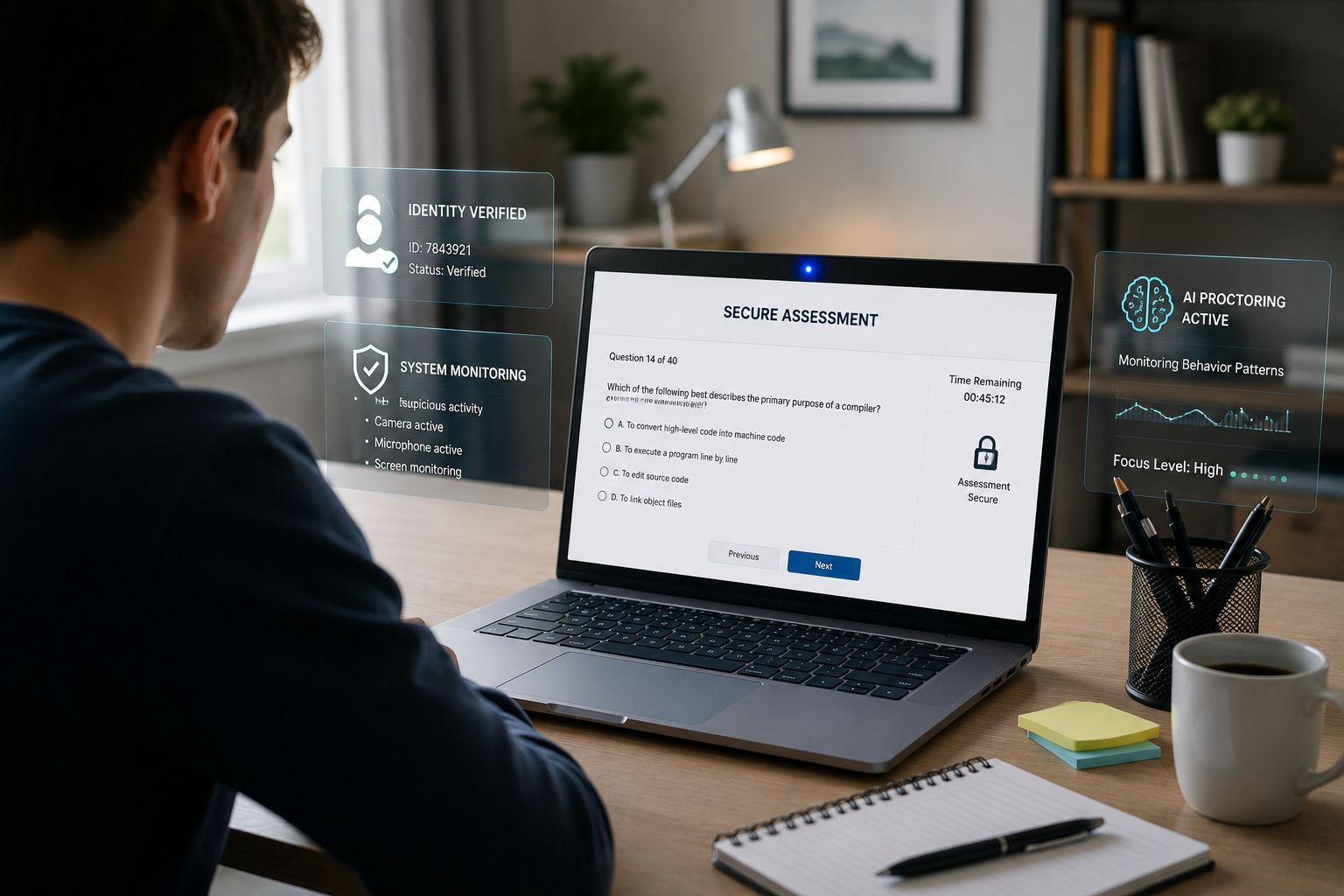
Lockdown browsers, when paired with webcam monitoring, create a secured virtual testing environment by restricting access to a student’s computer and simultaneously observing their behavior. This combination aims to replicate the controlled conditions of an in-person exam, preventing academic dishonesty in remote assessments. When activated, the lockdown browser transforms the student’s device into a dedicated testing station, while the integrated webcam continuously records video and audio of the student and their surroundings, often leveraging advanced AI to flag suspicious activities for review.
The shift to online learning has amplified the need for robust proctoring solutions. Beyond simply locking down a browser, the addition of webcam surveillance addresses the “physical room” aspect of cheating, catching behaviors that digital restrictions alone cannot. This detailed article explores the intricate mechanisms behind webcam-enabled lockdown browsers, their features, the technologies they employ, and what students and institutions need to know for a secure and fair online testing experience.
What Exactly is a Lockdown Browser?
A lockdown browser is specialized software designed to create a secure testing environment on a computer. It works by preventing students from accessing other applications, websites, or functions on their device during an exam.
When a student launches an exam through a lockdown browser, the browser takes over the entire screen, blocking access to features like printing, copying, pasting, and screen capturing. It also disables keyboard shortcuts, task switching, and prevents the opening of new tabs or applications. This digital “quarantine” ensures that students cannot search for answers or communicate with others on the same device.
The Crucial Role of the Webcam in Online Proctoring
While a lockdown browser secures the digital workspace, it cannot see what happens in the physical environment around the student. This is where the webcam becomes indispensable. Integrated webcam proctoring solutions, often companion applications like Respondus Monitor, Honorlock, or Proctorio, leverage the student’s camera and microphone to provide a visual and auditory record of the exam session.
This webcam feed allows proctoring systems to monitor for external aids or unauthorized assistance. It helps to cover the “blind spot” of a traditional lockdown browser by observing the student’s actions and immediate surroundings.
How Does Webcam Monitoring Work During an Exam?
Webcam monitoring with lockdown browsers involves a multi-step process, typically beginning before the exam even starts. This structured approach helps verify the student’s identity and ensures a compliant testing environment.
Pre-Exam Startup Sequence
Before an exam begins, students are guided through a series of mandatory setup steps. This sequence confirms the functionality of their hardware and sets the baseline for monitoring.
- Webcam and Microphone Check: The system first verifies that the webcam and microphone are working correctly. This often includes a visual confirmation for the student and an audio test.
- ID Verification: Students typically hold up a valid photo ID (such as a student ID or government-issued ID) to the camera for authentication. The system captures an image of the student and their ID, often using facial recognition to match the student’s live feed with their ID photo.
- Facial Detection: Many systems use
facial detection to ensure the student’s face is clearly visible and remains in the camera’s view throughout the exam. This helps maintain continuous monitoring. - Environment Check (Room Scan): Some instructors require students to perform a
room scan . The student rotates their webcam 360 degrees to show their workspace and surrounding area. This demonstrates that no unauthorized materials or individuals are present.
Continuous In-Exam Monitoring
Once the startup sequence is complete and the exam begins, the webcam continues to record. The monitoring system actively analyzes the video and audio feed for various behaviors.
- Eye and Head Movement Tracking: Advanced AI algorithms monitor eye gaze and head movements. Frequent or prolonged looking away from the screen, especially towards areas outside the camera’s view, can be flagged as suspicious behavior.
- Presence Detection: The system confirms that the authenticated student remains in front of the camera for the entire exam duration. It detects if the student leaves the frame or if another person enters the area.
- Audio Monitoring: The microphone continuously listens for unauthorized sounds such as other voices, whispered conversations, or unusual noises that might indicate external assistance.
- Object Detection: While less common in basic systems, some advanced proctoring tools can identify unauthorized objects in the camera’s view, such as cell phones or notes.
Post-Exam Review and Analysis
After the student submits the exam, the recorded session data is processed. The primary purpose of this monitoring is often for post-exam review by the instructor.
- Flagged Events: The AI system highlights specific moments in the recording where suspicious activity was detected. These “flags” can include prolonged gaze away from the screen, detection of another person, unusual noise, or the student leaving the camera’s view.
- Instructor Review: Instructors can then review these flagged events, or even the entire recording, to determine if academic misconduct occurred. This human review is crucial because AI flags can sometimes be false positives.
Key Features of Lockdown Browsers with Webcam
The combination of lockdown browser capabilities and webcam monitoring provides a robust suite of features designed to secure online assessments.
Browser Environment Lockdown
The core function prevents digital distractions and unauthorized access. This includes:
- Full-Screen Mode: Exams are displayed in full-screen and cannot be minimized, resized, or exited until submitted.
- Disabled Navigation and Features: Students cannot open new tabs, access other websites, or use functions like print, copy, paste, or screen capture.
- Application Blocking: The browser blocks access to other applications running on the computer, including messaging apps, screen-sharing software, virtual machines, and remote desktops.
- Multi-Monitor Restriction: If a student uses multiple monitors, the system typically disables all but the primary display to prevent using a second screen for cheating.
Webcam and Audio Monitoring
These features extend security beyond the computer screen:
- Real-time Recording: The webcam records continuous video and audio of the student during the exam.
- AI-Powered Behavior Analysis: Artificial intelligence algorithms analyze the recorded data for deviations from expected behavior. This includes detecting unusual eye movements, head turns, multiple faces, and suspicious audio.
- Identity Verification: Systems use photo ID capture and facial recognition to confirm the test-taker’s identity.
- Environment Scan: Some solutions require a room scan to verify the testing area is clear of unauthorized materials.
Types of Activities Monitored by Webcam Proctoring
Proctoring systems are designed to identify a range of potential academic integrity breaches. These commonly monitored activities include:
- Looking Away from the Screen: Prolonged or repeated glances away from the computer screen can indicate the student is looking at notes, another device, or receiving help.
- Talking or Whispering: Audio monitoring detects conversations, whispered answers, or unusual background noises.
- Presence of Other Individuals: The system flags if another person enters the webcam’s view or is detected by audio.
- Use of Unauthorized Devices: While the lockdown browser restricts computer functions, the webcam monitors for physical devices like smartphones, smartwatches, or tablets.
- Accessing Physical Notes or Books: If the exam is not open-book, the camera helps detect students referencing physical study materials.
- Leaving the Testing Area: The system can flag if a student leaves the camera’s view during the exam.
- Suspicious Sounds: Typing on a second keyboard or other unusual sounds can trigger alerts.
Behind the Scenes: AI and Human Proctoring
The effectiveness of webcam proctoring largely stems from the interplay between artificial intelligence and human oversight.
AI proctoring uses machine learning algorithms to analyze the webcam and audio feeds. It’s designed to identify patterns and anomalies that suggest cheating. These algorithms can track eye movements, detect faces, analyze audio for speech, and identify objects. “AI proctoring acts as the physical observer,” states an article from Quora. “Using the device’s webcam and microphone, machine learning algorithms monitor the student’s behavior and surroundings in real time.” The AI system essentially acts as the first line of defense, efficiently processing vast amounts of data and flagging potential issues.
However, AI is not infallible. It can generate
Benefits of Using Lockdown Browsers with Webcams
Institutions widely adopt these proctoring solutions due to several key advantages they offer in maintaining academic integrity:
- Enhanced Academic Integrity: By combining digital restrictions with physical monitoring, these tools significantly reduce opportunities for cheating, ensuring that grades accurately reflect student knowledge.
- Flexibility for Remote Learning: Students can take high-stakes exams from the comfort of their homes or any remote location, eliminating the need to travel to a testing center. This flexibility is crucial for online programs and diverse student populations.
- Fairness for All Students: A standardized proctoring environment aims to ensure that no student gains an unfair advantage, promoting a level playing field.
- Deterrence of Cheating: The knowledge that both their computer activity and physical actions are being monitored acts as a strong deterrent against academic misconduct.
- Scalability: Automated and AI-powered proctoring solutions can monitor a large number of students simultaneously, making them highly scalable for large courses or institutions.
- Detailed Record Keeping: The recorded video, audio, and system logs provide concrete evidence for review if academic dishonesty is suspected.
Challenges and Concerns with Webcam Proctoring
Despite the benefits, the use of webcam-enabled lockdown browsers also presents several challenges and raises significant concerns for students and institutions.
- Privacy Issues: Many students express discomfort with being recorded in their personal space. The collection of video, audio, and personal identification data raises privacy concerns. Institutions must adhere to strict data privacy regulations.
- Technical Difficulties: Students frequently encounter technical problems such as webcam detection failures, microphone issues, internet connectivity problems, or conflicts with other software. These can cause significant stress during an exam.
- False Flags: AI algorithms, particularly facial detection, can sometimes misinterpret innocent actions as suspicious. Factors like poor lighting, head movements, or diverse skin tones can lead to false flags, which disproportionately affect certain student groups. “We don’t recommend using the facial detection feature based
on the likelihood of false flags, which will be disproportionately attached to students of color, students with particular accommodation needs, and students who may not have fully stable internet or technological access throughout the exam,” stated Valentina Iturbe-LaGrave and Amelia Gentile-Mathew from the University of Denver. - Environmental Requirements: Students need a quiet, well-lit, private space free from interruptions. Not all students have access to such an ideal environment, leading to inequities.
- Equity and Access: Requiring specific hardware (webcam, microphone) and a stable broadband internet connection can be a barrier for students with limited resources.
- Anxiety and Stress: The feeling of being constantly monitored can increase student anxiety during exams, potentially impacting performance.
Best Practices for Students and Institutions
To maximize the effectiveness and minimize the negative impacts of webcam proctoring, both students and institutions should follow best practices.
For Students:
- Test Your Setup Early: Always take a practice quiz or run system checks well before the actual exam to confirm your webcam, microphone, and internet connection work correctly.
- Choose a Quiet Location: Find a private, quiet space where you will not be interrupted.
- Ensure Good Lighting: Sit in a well-lit room, avoiding backlighting (like sitting with your back to a window), to ensure your face is clearly visible.
- Clear Your Workspace: Remove all unpermitted materials, including books, papers, and other devices (like phones or tablets), from your desk and reach.
- Close Other Applications: Shut down all unnecessary programs and notifications on your computer before starting the lockdown browser.
- Maintain Eye Contact with Screen: Try to keep your eyes generally focused on the screen to avoid unnecessary flags from eye-tracking.
- Stay in Frame: Remain within the webcam’s view for the entire duration of the exam.
- Address Technical Issues Promptly: If you encounter a problem, use the provided help resources (e.g., live chat support within the browser) immediately.
For Institutions and Instructors:
- Provide Clear Instructions: Communicate all requirements, expectations, and technical troubleshooting steps to students well in advance.
- Offer Practice Exams: Implement mandatory, low-stakes practice exams that use the proctoring software. This helps students familiarize themselves with the system and troubleshoot issues beforehand.
- Consider Accessibility: Be mindful of students with disabilities or those lacking access to required technology. Provide alternative assessment methods or support when necessary.
- Review AI Flags Judiciously: Understand that AI flags are indicators, not definitive proof of cheating. Emphasize human review and consider the context of flagged events. Be cautious with highly sensitive features like facial detection.
- Ensure Privacy Compliance: Adhere strictly to data privacy regulations (e.g., FERPA in the US) regarding student data collection, storage, and access. Clearly inform students about what data is collected and how it is used.
- Provide Technical Support: Ensure students have access to responsive technical support during exam periods.
Choosing the Right Lockdown Browser Solution with Webcam
Selecting an appropriate proctoring solution requires institutions to weigh various factors, including features, integration capabilities, and cost. Here’s a comparison of prominent solutions:
| Feature/Solution | Respondus LockDown Browser + Monitor | Honorlock | Proctorio | Safe Exam Browser (SEB) |
|---|---|---|---|---|
| Browser LockDown | Yes, dedicated application. | Yes, Chrome extension-based secure browser mode. | Yes, Chrome extension-based secure browser mode. | Yes, dedicated open-source application. |
| Webcam Monitoring | Yes, with Respondus Monitor add-on. | Yes, always utilizes webcam. | Yes, always utilizes webcam. | No, typically requires integration with external proctoring systems for webcam. |
| Audio Monitoring | Yes, with Respondus Monitor. | Yes. | Yes. | No, typically requires external proctoring systems. |
| AI Detection | Yes, flags suspicious behavior for instructor review. | Yes, AI flags and can trigger live proctor pop-ins. | Yes, AI flags for later human review. | No built-in AI behavior monitoring. |
| Human Proctoring Option | Primarily automated, instructor review. Can integrate with live streaming for separate proctoring. | Hybrid: AI flags, can lead to live proctor pop-in, human review post-exam. | Automated, human review post-exam. Not real-time live proctors watching. | Requires integration with separate human proctoring services. |
| ID Verification | Yes, part of startup sequence. | Yes, part of startup sequence. | Yes, part of pre-checks. | No built-in ID verification. |
| LMS Integration | Seamless with Canvas, Blackboard, Moodle, Brightspace. | Seamless with Canvas, Blackboard. | Seamless with Canvas. | Integrates with various LMS platforms, often requires manual configuration. |
| Device Compatibility | Windows, Mac, Chromebook, iPad. | Chrome browser required (PC/Mac desktop/laptop). | Chrome browser required (Windows/Mac desktop/laptop). | Windows, Mac, Linux (limited). |
FAQ
What does a lockdown browser with webcam typically monitor during an exam?
A lockdown browser with webcam typically monitors the student’s screen activity, records video and audio of the student and their environment, tracks eye and head movements, and verifies identity. It also checks for unauthorized applications, websites, and external devices.
Is someone watching me in real-time when I use a lockdown browser with a webcam?
Not always. Many systems, like Respondus Monitor and Proctorio, use AI to record and flag suspicious activities for instructors to review later, rather than having a live person watch in real-time. Some, like Honorlock, may initiate a live proctor “pop-in” if the AI detects a high-severity flag.
What are common reasons for a lockdown browser webcam to not work?
Common issues include incorrect camera privacy settings, conflicts with other running applications, outdated browser or webcam drivers, network security settings blocking access, or the webcam simply not being detected by the system.
Can lockdown browsers detect a second monitor or another device like a phone?
Yes, lockdown browsers are designed to disable secondary monitors. Webcam proctoring, working in tandem, monitors the physical environment to detect unauthorized devices like phones or tablets that a student might try to use outside of the computer’s view.
How can I ensure my privacy when using webcam proctoring software?
Students should review the institution’s privacy policy and the proctoring software’s privacy statements. Only launch the software when necessary for an exam, ensure webcam and microphone permissions are revoked afterward, and understand what data is being collected and how it will be stored and used.
What is an “environment check” or “room scan” during webcam proctoring?
An environment check or room scan is a pre-exam step where the student uses their webcam to show a 360-degree view of their testing area. This allows the system or reviewer to verify that the workspace is clear of unpermitted materials and that no other individuals are present.
Conclusion
Lockdown browsers combined with webcam monitoring have become a cornerstone of online assessment security in 2026. By locking down the digital testing environment and simultaneously observing the physical space, these tools offer a comprehensive approach to deterring and detecting academic dishonesty. While they provide significant benefits in ensuring academic integrity and offering flexibility for remote learning, they also come with challenges related to privacy, technical issues, and equitable access. Adhering to best practices, fostering transparent communication, and thoughtfully integrating these technologies are essential for creating fair, secure, and effective online examination experiences for all students.