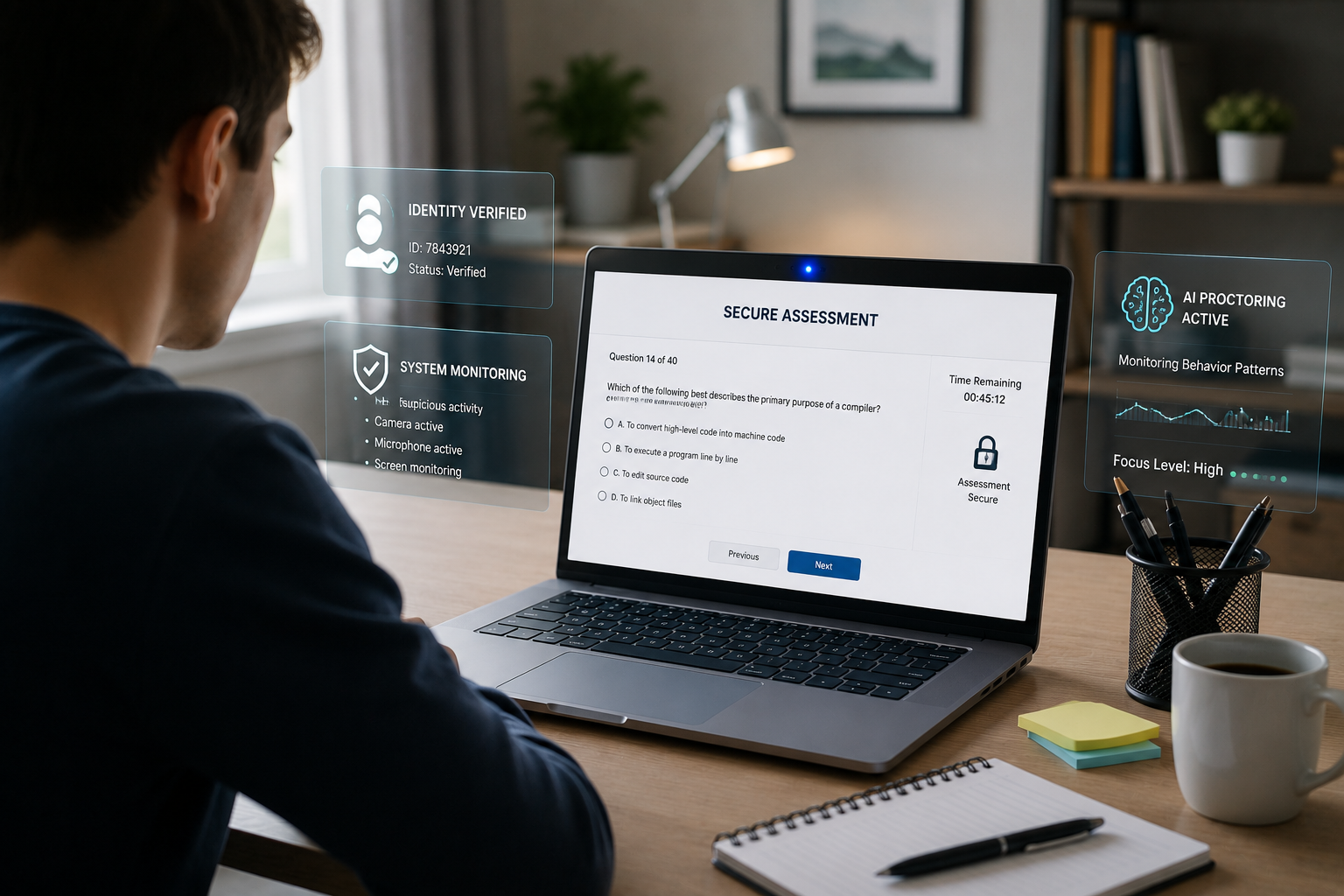
A lockdown browser with a webcam, often referred to as a “proctored browser,” creates a controlled testing environment to ensure academic integrity during online exams. It achieves this by restricting access to other applications, websites, and system functions on a student’s computer, while simultaneously using the webcam and microphone to monitor the student’s behavior and surroundings for suspicious activity. This dual approach aims to prevent cheating and provide a credible assessment experience for remote learners.
The implementation of such technology has reshaped the landscape of online education, moving beyond simple content delivery to encompass secure and verifiable assessments. Understanding the mechanisms behind these tools is crucial for both educators designing exams and students navigating the digital testing environment. This article will delve into the core functionalities, the role of webcam monitoring, and practical aspects of using lockdown browsers with webcams.
Understanding the Core Technology: How Lockdown Browsers Function
What is a Lockdown Browser?
A lockdown browser is a specialized web browser designed to secure the testing environment for online examinations. It acts as a digital gatekeeper, ensuring that students remain focused solely on their exam content. Unlike standard browsers like Chrome or Firefox, a lockdown browser prevents users from accessing other applications or navigating away from the test.
How Does a Lockdown Browser Limit Access?
When activated, a lockdown browser takes over the student’s computer. It displays the assessment in full-screen mode, preventing minimization or resizing. The browser disables common functions such as printing, copying, pasting, and taking screenshots. It also blocks access to other applications, including messaging apps, screen-sharing tools, virtual machines, and remote desktops.
Essentially, the software transforms the computer into a dedicated testing station. Students cannot exit the exam until they submit it for grading. This comprehensive lockdown prevents many common forms of digital academic misconduct.
The Role of the Webcam: Real-time Proctoring in Detail
How Does the Webcam Monitor Students?
The webcam component, often called a “monitor” or “proctoring” feature (e.g., Respondus Monitor), works in conjunction with the lockdown browser. It records the student’s audio and video throughout the exam session. Before the exam begins, students typically go through a startup sequence. This sequence often includes a webcam check, a photo ID verification, and an environment check. The environment check usually requires the student to pan their camera around the testing area to demonstrate no unauthorized materials or individuals are present.
During the exam, the webcam continually records the student. This recording is often analyzed by artificial intelligence (AI) to detect potential anomalies. The AI identifies suspicious behaviors and flags them for later review by the instructor. It is important to remember that AI flags do not automatically determine cheating; instructors review the flagged recordings to make a final judgment.
What Kind of Behavior Does the Webcam Detect?
The webcam and accompanying AI are designed to detect a range of behaviors that might indicate academic dishonesty. These include:
- Eye and Head Tracking: The system monitors where a student’s eyes and head are directed. Frequent glances away from the screen, especially downwards or to the sides, can trigger flags. Looking at a phone or cheat sheet is a common detection target.
- Facial Detection: It ensures the student’s face remains visible within the camera frame. Covering the face or moving out of view can be flagged.
- Audio Detection: The microphone records ambient sounds. It can detect unusual noises, whispering, or external voices that might indicate someone is assisting the student.
- Presence of Other Individuals: The system aims to detect if other people enter the testing area, which is a common concern among students regarding privacy.
“AI proctoring leverages advanced algorithms to analyze real-time video and audio streams, identifying patterns that deviate from expected testing behavior,” explains Dr. Evelyn Reed, a cybersecurity expert specializing in educational technology. “The goal is not to accuse, but to provide actionable insights for human review, thus maintaining the integrity of online assessments.”
Key Features and Benefits of Webcam Proctoring
Integrating webcam proctoring with a lockdown browser offers several advantages for maintaining academic integrity in online environments.
- Enhanced Security: It creates a more secure testing environment by combining software restrictions with visual and auditory monitoring.
- Flexibility for Students: Students can take exams remotely, often without needing to schedule a specific proctoring session, providing greater flexibility.
- Deters Cheating: The knowledge of being monitored often acts as a deterrent against academic misconduct.
- Evidence for Review: Recorded sessions provide concrete evidence for instructors to review suspicious activity, leading to more informed decisions.
- Scalability: Automated proctoring solutions can manage a large number of students simultaneously, which is essential for large online courses.
The Setup Process: Getting Started with a Lockdown Browser and Webcam
Setting up a lockdown browser with a webcam typically involves a few key steps for students:
- Download and Installation: Students must download and install the specific version of the lockdown browser provided by their institution. Generic downloads may not work.
- System Requirements Check: Before an exam, students should ensure their device meets the system requirements, including a functional webcam and microphone. Updating the browser and operating system is also crucial for performance and stability.
- Pre-Exam Environment Setup: Clear the testing area of unauthorized materials. Ensure good lighting and a stable surface for the computer. Minimize background noise and distractions.
- Launch Sequence: Launch the lockdown browser, usually by navigating to the exam in the learning management system (LMS). The browser will then guide the student through the webcam check, ID verification, and environment scan.
- Close Other Applications: The browser will often prompt students to close other running applications, such as messaging apps, email clients, or other web browsers. It might not allow the exam to proceed if certain applications remain open.
- Practice Exams: Instructors often provide a low-stakes practice exam to familiarize students with the software and ensure it functions correctly on their device.
Addressing Concerns: Privacy, Security, and Fairness
How Do Lockdown Browsers Protect Student Privacy?
Privacy concerns are significant because the software records a student’s personal space and activities. Providers of lockdown browsers typically state that recordings are only accessible to authorized personnel (e.g., instructors) for academic integrity review. They emphasize that the data is not used for other purposes or shared externally. Systems like Respondus Monitor do not involve real-time human monitoring; instead, AI flags segments for later review.
Despite these assurances, some students feel the process is intrusive. “This software is essentially malware or academic stalkerware. It’s deeply invasive and allows school administrators to violate students’ privacy rights,” stated Evan Greer, Deputy Director of Fight for the Future, a digital rights non-profit. Institutions must balance security needs with student privacy rights, offering clear policies and communication about data handling.
What Security Measures Are in Place?
Lockdown browsers employ various security measures to protect the testing environment and student data. The software typically uses secure connections (like TLS) to upload recordings. Developers regularly update the software to counter new methods of bypassing the system. Institutions are encouraged to provide official download links to prevent students from installing counterfeit software that could introduce malware.
While the risk of the application itself introducing malicious code or compromising devices is generally considered low when obtained from official sources, it’s a concern that some students express. Responsible usage also involves students keeping their devices and the browser updated. Issues like system conflicts, freezing, or errors are often resolvable with restarts or closing other applications.
Comparing Popular Lockdown Browser Solutions
Several lockdown browser and proctoring solutions are available, each with unique features and integrations. Respondus LockDown Browser with Monitor is a widely used example. Other solutions include Safe Exam Browser (SEB), ExamSoft Examplify, Honorlock, and Proctorio.
| Feature | Respondus LockDown Browser + Monitor | Safe Exam Browser (SEB) | Honorlock | Proctorio |
|---|---|---|---|---|
| Browser Lockdown | Yes (Custom application) | Yes (Open-source kiosk window control) | Yes (Secure-browser mode) | Yes (Browser extension with secure-exam mode) |
| Webcam Proctoring | Yes (AI-based recording and flagging) | No (By itself, no recording by default) | Yes (Live and AI proctoring) | Yes (Behavioral flags) |
| Microphone Monitoring | Yes (Records audio for suspicious sounds) | No (By itself) | Yes | Yes |
| Screen Recording | Yes (Optional, records student and on-screen activity) | No (By itself) | Yes | Yes |
| Detects External Devices | No (Limits computer use, but not external devices like phones) | No (Limits computer use) | Yes (Often includes phone detection) | Yes |
| AI Analysis | Yes (Flags suspicious activity for instructor review) | No | Yes | Yes |
| Integration with LMS | Seamless with Blackboard, Canvas, Moodle, Brightspace, Sakai, Schoology | Widely used in higher education | Seamless with major LMS | Seamless with major LMS |
Expert Insights on Remote Proctoring
The rise of online learning has necessitated robust solutions for academic integrity. Dr. Anya Sharma, an educational technology researcher, notes, “The primary challenge in remote proctoring is to create an environment that mimics the security of an in-person exam while respecting student privacy and access to technology. AI-powered webcam monitoring is a significant step in this direction, but it’s not a silver bullet.”
The academic community continues to debate the effectiveness and implications of these technologies. While proctoring solutions aim to deter cheating, some critics argue that they foster an environment of mistrust and anxiety among students. A student at Florida International University, Linette Garcia, shared her experience, stating, “I was so paranoid that any noise or fidget could be unfairly ruled as cheating that I concentrated more on removing all distractions than on the actual test. This intrusive surveillance does not maintain academic integrity but does force online students into an unhealthy and stressful environment.”
Institutions are often encouraged to provide clear guidelines, conduct practice exams, and offer alternatives for students who may face technical or privacy challenges.
Maximizing Effectiveness: Best Practices for Students and Educators
For Students:
- Test Your Setup Early: Always take any provided practice exams well before the actual test to ensure your system and internet connection are compatible.
- Ensure System Readiness: Keep your operating system and lockdown browser software updated. Restart your computer before the exam to clear memory and close unnecessary applications.
- Optimize Your Environment: Choose a quiet, well-lit location free from distractions. Position your webcam correctly and avoid backlighting. Inform household members about your exam to minimize interruptions.
- Stable Internet Connection: Use a wired Ethernet connection if possible. If relying on Wi-Fi, be close to the router and minimize other bandwidth-intensive activities.
- Read Instructions Carefully: Pay close attention to all exam instructions provided by your instructor regarding allowed materials and behaviors.
- Troubleshooting: If issues arise, use the built-in help features (e.g., webcam check, system & network check) or contact IT support.
For Educators:
- Provide Clear Instructions: Communicate detailed expectations for using the lockdown browser and webcam, including setup steps and acceptable testing environments.
- Offer Practice Opportunities: Mandate a low-stakes practice quiz using the proctoring tools. This helps students troubleshoot issues and become familiar with the system.
- Inform About Privacy: Be transparent about what data is collected, how it’s used, and who can access it. Address student concerns about privacy directly.
- Review Flags Thoughtfully: Understand that AI flags are indicators, not definitive proof of cheating. Review recordings with a nuanced perspective, considering context.
- Consider Alternatives/Accommodations: For students with hardware limitations or accessibility needs, explore alternative assessment methods or in-person proctoring options. “If LockDown Browser cannot fully support a student’s accommodations, provide an alternative assessment option (like an oral or written exam),” suggests an accessibility best practices guide.
- Update Software: Ensure your institution’s lockdown browser software is always the latest version for optimal performance and security.
Frequently Asked Questions About Lockdown Browsers with Webcams
What is the main purpose of a lockdown browser with a webcam?
The main purpose is to create a secure and verifiable online testing environment. It restricts digital access to outside resources and monitors student behavior via webcam to deter and detect cheating.
Do lockdown browsers record everything on my computer?
No, a lockdown browser primarily restricts access to other applications and websites during an exam. When combined with webcam proctoring, it records your webcam feed and microphone audio. Some solutions may also record your screen activity within the browser.
Can a lockdown browser detect if I use a second monitor or phone?
A lockdown browser on its own typically focuses on locking down the primary computer. However, advanced webcam proctoring systems use AI to detect eye movements that might indicate looking at an unauthorized device like a phone, and some solutions can detect multiple monitors. An environment check might require showing your surroundings, including a clear desk.
Is it possible to bypass a lockdown browser with a webcam?
While developers constantly update software to prevent bypass attempts, students might always try to find workarounds. However, vendors like Respondus have a strong track record of quickly blocking student efforts to bypass their LockDown Browser. Attempts to bypass can result in severe academic penalties.
What happens if the webcam flags suspicious activity?
If the webcam system flags suspicious activity, it generates an alert for the instructor. The instructor then reviews the recorded video and other data from that specific time segment. The AI does not automatically fail a student; the instructor makes the final determination of academic misconduct.
Do I need special equipment to use a lockdown browser with a webcam?
You need a computer (Windows 10/11, macOS 10.12 or higher, or a Chromebook) with a functional, built-in or external webcam and a microphone. A stable internet connection is also crucial.
Can I take breaks during an exam with a lockdown browser and webcam?
Generally, lockdown browsers do not support pausing or resuming an exam once started. You cannot exit the test until it is submitted. If breaks are necessary, the instructor must structure the test into parts or allow multiple testing sessions.
Is my personal data safe with lockdown browsers and webcam proctoring?
Providers typically assert that personal data, including recordings, is used solely for academic integrity purposes and is not shared or sold. However, student privacy remains a significant concern. Institutions should provide clear data privacy policies, and students should download software only from official institutional links.
Conclusion
Lockdown browsers with webcam proctoring represent a robust solution for securing online exams and upholding academic integrity in the digital age. They combine restrictive browsing environments with continuous audio and video monitoring, often augmented by AI, to create a controlled testing experience. While these technologies offer significant benefits in deterring and detecting cheating, they also bring forth important discussions around student privacy and fairness. By understanding how these systems work, adhering to best practices, and maintaining open communication, both students and educators can navigate the complexities of remote proctoring more effectively, fostering an environment of trust and academic honesty.
Disclaimer: This article provides general information about lockdown browsers with webcams and remote proctoring. Specific features, policies, and effectiveness can vary significantly between different software providers and educational institutions. Users should always consult their institution’s official guidelines, IT support, and relevant software documentation for precise details and assistance.